Home and Learn: Intermediate Programming
Stick Figure Head and Body

Stick Figure App - Head, Arms, Legs
In the previous lesson, we created a class to handle the dimensions of the stick figure. Let's now put that class to work and draw a head and a body.
Go back to your DrawStickMan routine. You only have one line of code here so far. This one:
graphicsObject.DrawEllipse(drawingPen, mouseX, mouseY, mouseY1 - mouseY, mouseY1 - mouseY)
Instead of that as the first line, set up a new object from your StickFigureDimensions Class. Add this in VB Net:
Dim size As New StickFigureDimensions(mouseY, mouseY1)
And this in C#:
StickFigureDimensions size = new StickFigureDimensions(mouseY, mouseY1);
This creates a new object of type StickFigureDimensions. The name of this object is size.
In your DrawEllipse line, delete these two parts: mouseY1 - mouseY. In their place, type size then a dot. As soon as your type the dot, you'll see a list appear. This one:
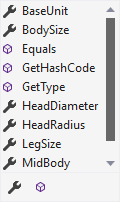
As you can see, the list has all your new properties on it. Select the HeadDiameter one. After a comma, type the same: size.HeadDiameter. If you added a Summary comment, when you select HeadDiameter, you should see this in VB Net:

And this in C#:

Without the summary, you wouldn't see the second line of text in the image above.
But your Sub should look like this in VB Net:

And this in C#:

Try it out. You should find that your program works and that you can still draw circles.
Let's draw give our stickman a body to go with his head.
Drawing the Body
To get a body, we need to draw a line. Remember how lines are drawn:
graphicsbitmap.DrawLine(drawingPen, x, y, x1, y1)
The x and y between the round brackets of DrawLine are for the start of your line. The x1 and y1 are for the end of your line. We can use our new StickFigureDimensions Class in conjunction with mouseX and mouseY, mouse X1 and mouseY1.
The line to draw the stickman body needs to start at the bottom center of the circle. To get the center of our circle, we start with the mouseX. Add the circle radius to this and you'll get the X position for the start of the line. To get the Y position, it's mouseY plus the diameter of the head.
So, the start of the line is this for us:
x = mouseX + size.HeadRadius
y = mouseY + size.HeadDiameter
We're drawing a vertical line. So the end X value is the same as the start X value. The end Y value is mouseY plus the size of the head plus the body size. So, this for us:
x1 = mouseX + size.HeadRadius
y1 = mouseY + size.HeadDiameter + size.BodySize
Add this line to your code, just under the Head code (add the semicolon on the end in C#):
graphicsObject.DrawLine(drawingPen, mouseX + size.HeadRadius, mouseY + size.HeadDiameter, mouseX + size.HeadRadius, mouseY + size.HeadDiameter + size.BodySize)
The line is a bit long. You can spread it over multiple lines by hitting the Enter key on your keyboard after a comma. Then TAB across. This will make your code easier to read. But it should look like this in the VB Net coding window:

And this in C#:
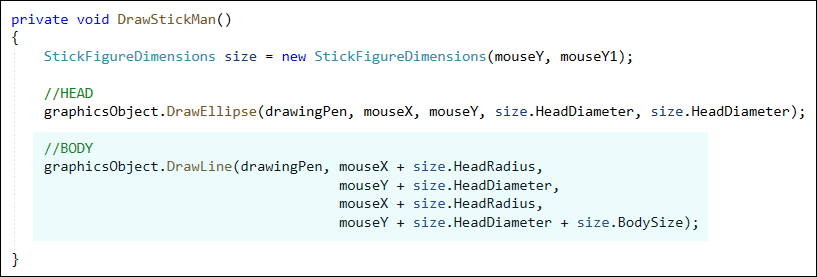
Try it out. Run your program. Hold down your left mouse button on your white surface. Keep it held down and drag to the right. Lift your left mouse button and you should see something this:
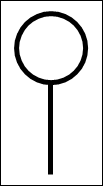
Now that we have his head and body, we can draw the legs. We'll do that in the next lesson below. Before giving you the code for the legs, though, it's good practice to try and puzzle out for yourself where all the X and Y positions need to go. Use the first two lines as your guide.
