Home and Learn: Intermediate Programming
Draw Stick Figure Female

Stick Figure App - Head, Arms, Legs
We've drawn stick figure men in previous tutorials. Now let's draw a stick figure woman. The stick figure we'll draw is this:

We already have the code to draw the circle for the head. We need to add code to draw a triangle, some lines coming off the triangle for the arms, and some vertical lines at the bottom of the triangle for the legs.
You should already have a Sub or method set up called DrawStickLady. We added this in an early lesson and called the routine from the MouseUp event. It should look like this in VB Net:

And this is the code you should have in C#:
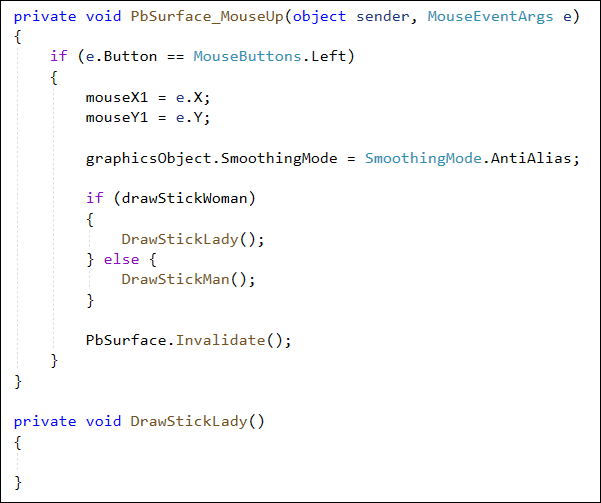
Incidentally, if you're adding your own draw buttons later, you'd need to amend the if … else here. For example, if you wanted to add a stickman seated figure, you'd set up a Boolean at the top of the code, drawStickmanSeated, say. Then you'd say:
If drawStickWoman
'YOUR CODE HERE
Else if drawStickMan
'YOUR CODE HERE
Else if drawStickmanSeated
'YOUR CODE HERE
But back to the drawStickWoman code.
As the first line for your DrawStickLady routine, set up a new object from your StickFigureDimensions Class:
VB Net:
Dim size As New StickFigureDimensions(mouseY, mouseY1)
C#:
StickFigureDimensions size = new StickFigureDimensions(mouseY, mouseY1);
We already have a head we can copy and paste. We'll do that in a moment. First, we can set up an array of Points. We'll need this for the triangle body. We can then use DrawPolygon instead of DrawEllipse or DrawLine.
Setting up a Points Array
We need some polygon points to draw a triangle. In a previous tutorial, you saw how to draw regular 5-sided polygons. This time, we only need three points. This will get us a triangle.
When setting up a polygon in a previous lesson, we did it something like this (VB Net):
Dim polygonPoints(2) As Point
polygonPoints(0) = New Point(10, 30)
polygonPoints(1) = New Point(30, 70)
polygonPoints(2) = New Point(100, 10)
So, instead of an array of strings, say, or integers, this is an array of Points. Each new point in the Point array has two values, one for the X and one for the Y. Another way to set this Point array up is like this:
Dim polygonPoints(2) As Point
polygonPoints(0) = New Point(0, 0)
polygonPoints(1) = New Point(0, 0)
polygonPoints(2) = New Point(0, 0)
polygonPoints(0).X = 'SOME X VALUE HERE
polygonPoints(0).Y = 'SOME Y VALUE HERE
In other words, zero out all your new points and then explicitly set X and Y values.
So, in VB Net, set up this Points array just after the line that creates a new size object:
Dim polygonPoints(2) As Point
In C#, the Point array declaration is this:
Point[] polygonPoints = new Point[3];
Now create a new point and set the X and Y to zero with this code in VB Net:
polygonPoints(0) = New Point(0, 0)
polygonPoints(1) = New Point(0, 0)
polygonPoints(2) = New Point(0, 0)
And here's the code for C#:
polygonPoints[0] = new Point(0, 0);
polygonPoints[1] = new Point(0, 0);
polygonPoints[2] = new Point(0, 0);
Your DrawStickLady Sub should look like this in VB Net:

And this in C#:

Now have a look at what we're trying to draw:

The triangle needs to go under the head. The first point, the 0, 0, is positioned at the center of the circle in the X direction. This will be mouseX plus the head radius. The Y point will be the top of the circle, which is mouseY for us, plus the head diameter.
The first polygon point, therefore, is this in VB Net:
polyPoints(0).X = mouseX + size.HeadRadius
polyPoints(0).Y = mouseY + (size.HeadDiameter + drawingPen.Width)
And this in C#:
polygonPoints[0].X = mouseX + size.HeadRadius;
polygonPoints[0].Y = mouseY + (int)(size.HeadDiameter + drawingPen.Width);
In C#, you need to cast to an integer after the mouseY part. This is done by using (int) in front of whatever you're trying to cast.
But notice this on the end in both VB Net and C#:
drawingPen.Width
This just moves the triangle down to the bottom of the circle. Otherwise, it will stick out into the circle on top.
To get the second polygon X and Y points the code is this for VB Net:
polygonPoints(1).X = mouseX + size.HeadDiameter
polygonPoints(1).Y = mouseY + size.HeadDiameter + size.BodySize
And this for C# (no need to cast, this time):
polygonPoints[1].X = mouseX + size.HeadDiameter;
polygonPoints[1].Y = mouseY + size.HeadDiameter + size.BodySize;
The X point starts with mouseX. You then add the head diameter to this. This will move the X point to the right, in line with the right edge of the circle. The Y point is the mouseY plus the head diameter plus the body size.
Only one more point to go.
The final X and Y points just take the mouseX for the X point and the same values we had for the Y of the second point. Here's the code to add in VB Net:
polygonPoints(2).X = mouseX
polygonPoints(2).Y = mouseY + size.HeadDiameter + size.BodySize
And here's the code to add in C#:
polygonPoints[2].X = mouseX;
polygonPoints[2].Y = mouseY + size.HeadDiameter + size.BodySize;
Your DrawStickLady Sub should look like this in VB Net:
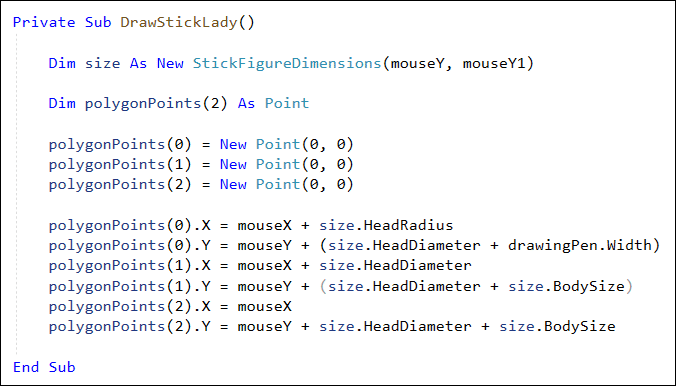
And like this in C#:

Now copy and paste your head code from the stick man routine. Paste it in just below the polygon points (add the semicolon in C#).
graphicsObject.DrawEllipse(drawingPen, mouseX, mouseY, size.HeadDiameter, size.HeadDiameter)
Now we can draw a polygon.
Add this line (with the semicolon on the end in C#):
graphicsObject.DrawPolygon(drawingPen, polygonPoints)
We've covered drawing polygons in another section, so won't go over the code here.
But your Sub should look like this in VB Net:

And your method should look like this C# version:
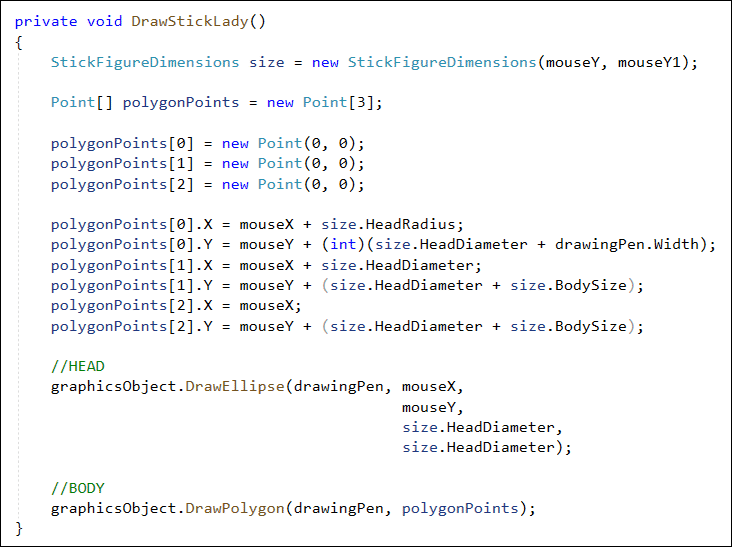
Run your program. Click the stick figure female button. Now draw one out on your white canvas. It should look like this:

Now that we have a head and body for the female figure, we can do the arms. We'll do that in the next lesson.
