Home and Learn: Intermediate Programming
Starting the Form Design

Stick Figure App - Form Design
Start a new project. Call it DrawingProgram. Make the default form a bit bigger. We made ours 880 wide by 700 high with the Size property. With your form selected, locate the StartPosition property. Set it to CenterScreen. Set the Text property of the form to Stick Figure Draw.
One other property we can set is an Icon. The defaults look like this:

To change the icon, you need an ICO image file. The size of the image is normally 32 by 32, but you can use bigger sizes as your image will shrink to fit. You can use any image you like, or design one yourself. But you need an image that can be converted to ICO format. Creating your image in PNG format is ideal. But make sure you have a transparent background. Once you have your image, you can search Bing or Google for an online convertor. Type png to ico in the search box.
Or you can use our ico file. To do so, right-click the following image and save it to your computer:
Click on your form to select it. In the properties area, locate the Icon property:
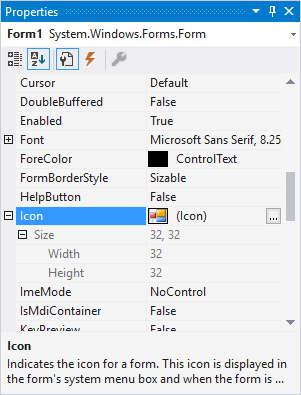
Click the button to the right of the text (Icon). You'll see a standard open file dialog box. Navigate to where on your computer your ICO file is. Select it and click Open on the dialog box. Now look in the top left of your form. You should see your new icon:

Your icon doesn't have to be black and white, like ours. You can go for something more colourful, if you prefer.
The Drawing Surface
Add a PictureBox control to your form, which is the surface we'll be drawing on. Change the Name property of the PictureBox to PbSurface. Change the size to 630 by 420. Position it in the top left of your form. Locate the BackColor property and change it to ControlLightLight, which is an inbuilt system color:

This should turn your PictureBox a nice shade of white. A PictureBox is not an ideal drawing surface. But there's not much else to choose from, so we're stuck with it.
One final property you can set for the Picture Box is the BackStyle property. Change it to FixedSingle.
All the other controls on our form will go in Group Boxes (under the Containers category in the toolbox). So let's add those now.
Add the Group Boxes
Add the first Group Box just to the right of your picture box, near the top. We made the size of ours 188 by 420 (via Size property). Change the Text property of the first Group Box to Stick Figures.
Now add four more Group Boxes. Resize and Position them below the Picture Box.
Change the Text properties of these other Group Boxes to the following:
Colors
Brush Size
Line Style
Actions
Now add a Combo Box inside of your Colors Group Box, near the bottom. Change the Name property to cmbColors. Change the Text property to Color Selector. Set the Font to 16 point bold.
Your form should look something like this one:

We're going to add 4 buttons to the Stick Figures Group Box. (The space in the group box is there so you can add other buttons yourself, once you've learned how to draw stick figures.)
In the Line Style Group Box, we'll add 2 Radio Buttons. The Colors Group Box will have 7 buttons and a label. The Brush Size Group box will have a Track Bar and some labels. The Actions Group Box will have buttons for Undo, Redo, Save Image and Clear Surface.
The buttons we'll add to the Stick Figures Group Box will have images on them instead of text. The images can be in the PNG format with a transparent background. You can download the images here (you'll need to unzip them):
Now we can add our first button. We'll do that in the next lesson below.
