Home and Learn: Microsoft Excel Course
Microsoft Excel Font Formatting
If you've been following along with the previous tutorials, you should now have a spreadsheet that looks like this:
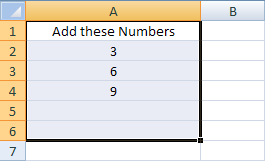
Excel has a wide range of formatting options, and it's relatively easy to turn a dull spreadsheet into something that really shines. We'll start with changing the font.
Choosing a Font in Microsoft Excel
You can pick a different font for the data you enter into cells, as well as choosing the size you want. The colour of the font, and the cell background, can be changed, too. You can even choose a Theme so that you can format your spreadsheets more easily. You'll meet these later. First, we'll see how to change the font type.
- Highlight cell A1 on your spreadsheet by simply clicking into it
- Locate the Font panel on the Excel Ribbon at the top of the page:
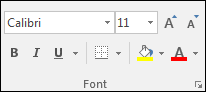
The font in the panel above is set to Calibri. Newer versions of Excel may say Aptos Narrow. To see more fonts, click the black down arrow:
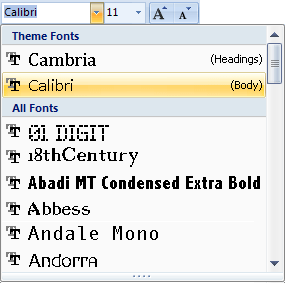
The good things about Excel is that when you move your mouse over one of the fonts on the list, the text in your selected cell (A1) will change automatically. This is just a preview, though. (Latest version of Excel make you download some font styles.) When you have decided on the font you want, click it with the left mouse button.
You can change the size of the font in the same way - just choose a new font size from the list of numbers in the drop down box.
If you want to change the font via the Format Cells dialogue box, as you did in previous versions of Excel, you can click the small arrow in the bottom right of the Font panel (the one circled below):
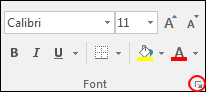
When you click the arrow, you'll see the Format Cells dialogue box. You can choose various options from this dialogue box: Font size, style, size, etc. The dialogue box looks like this:

You can also set the font colour from here, and add text effects. Click OK when you have made your choices.
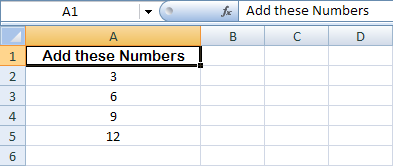
When you have changed the font and font size, your A1 cell might look something like this:
The background colour of your cells can be changed, too. We'll see how to do that in the next part of this tutorial.
Change Cell Colours in Excel -->
<--Back to the Excel Contents Page