Home and Learn: Microsoft Excel Course
How to Change the Colour of a Cell
In the previous lesson, you saw how to change the font and font size in Excel. In this lesson, we'll look at how to change the colour of a cell.
Change the Background Colour of a Cell
To change the background colour of cells, you first have to highlight the ones you want to alter. We'll start with the cells A2 to A5. So highlight these cells on your spreadsheet.
- With the cells A2 to A5 highlighted, locate the Font panel on the Ribbon at the top of the Excel:
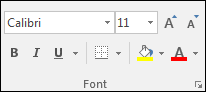
- Locate the Paint Bucket, and click the arrow just to the right of it. You'll see some colours appear:
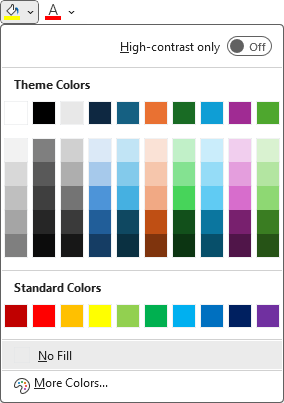
Move your mouse over any of the colours and the cells will change automatically. You can then see what the new colour looks like. Click with the left mouse button to set the colour you want. If you don't like any of the colours displayed, click on "More Colors".
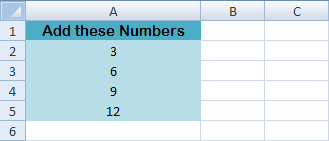
Once you have the number cells formatted in a different colour, click on
the cell A1. Now do exactly the same thing, only this time choose a contrasting
colour for the background of this cell. Your spreadsheet should then look
something like the one below.
Change the Text colour
To change the colour of the text itself, click the down arrow just to the right of the letter A, which is just to the right of the Paint Bucket on the Font panel.
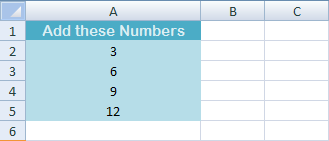
Select a colour just like you did for the background colour of the cell. Here's what your spreadsheet might look like with the background cell colour changes, and the text colour:
So with just a few clicks of your mouse, you can create a quite attractive spreadsheet. In the next part, you'll see how to save your work in Excel.
<--Back to the Excel Contents Page