Home and Learn: Android Course
Configuring a TextView in Android
Now that we have an ImageView on the left, we need a TextView to go alongside it.
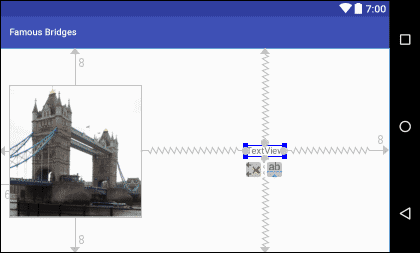
From the Palette, drag a TextView widget onto your Component Tree (or onto the layout). If it ends up in the top left corner, drag it somewhere in the middle:

It's better to add the constraint now. So drag from the right middle of the TextView to the right edge of the screen. Now drag from the left middle of the TextView to the right edge of the ImageView. Drag from the top middle to the top of the screen to add a top contraint for your TextView. Add a constraint from the bottom of the TextView to the bottom of the screen:
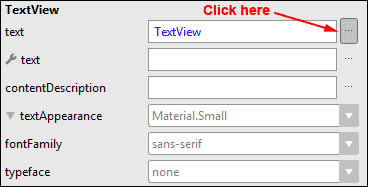
With the TextView still selected, click the Pick a Resource button:

From the Resources dialogue box, select your tower_bridge string:
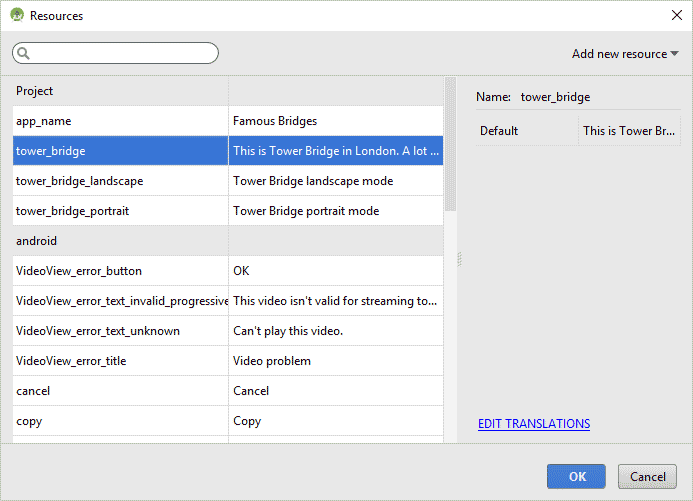
Click OK and your layout might look like this:

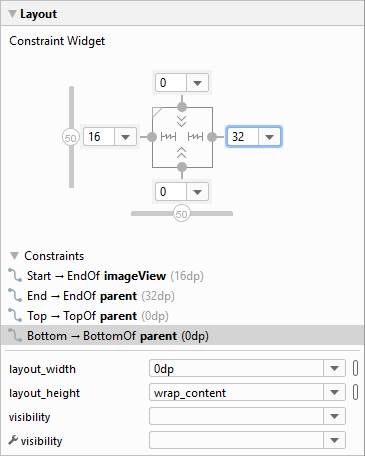
As you can see, the TextView is right on top of the image. To fix that, have a look at the properties area on the right. In later versions of Android Studio, expand the Layout category. Set the layout_width to 0dp:


Your layout will then look something like this:

You can add some margins left and right, now.
In the properties or Layout area, change the left margin for the TextView to 16, and the right margin to 32:

If you have a look at the warning area, you might see this:

The top three are the same as the ones you saw before. Click the View all properties link at the bottom and set the properties and values suggested in the warning:
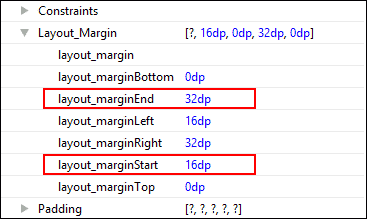
The reason that there are two warning about marginStart is because one of them is for the ImageView. Click on your ImageView to select it, and then fix the warning.
You can try it out, now. Run your app. Rotate the device so that it's in landscape view. You should see your new design displayed:
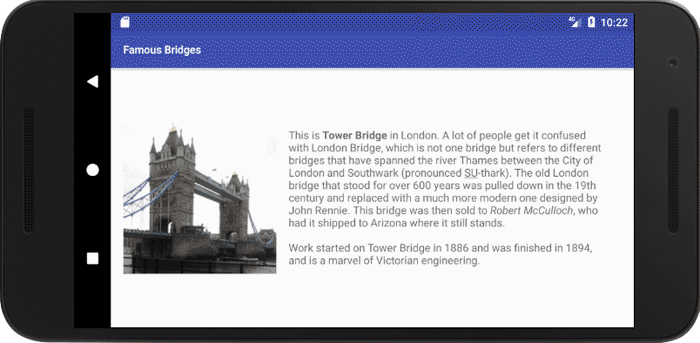
The new display is being pulled from the layout-land folder and is the activity_main XML file we created there. Android is switching between the two all by itself!
In the next section, we'll move on and tackle Action Bars and Toolbars.
< Landscape Layout| Action Bars and Toobars >
Back to the Android Contents Page