Home and Learn: AI Beginners Course
Create a Talking Avatar with Magi Human
Created:
In the previous lesson, you created videos with sound. But only background sounds and music. In this lesson, you'll create a talking avatar with Magi Human.
Called Magi Human for short, daVinci-MagiHuman is a specialized application of daVinci. It is used to create ultra-stable, expressive human talking heads. (daVinci is the AI model, a 15B single-stream Transformer. It can take a while to install as it comes with a lot of dependencies.)
Magi Human is best suited for projects where you want the camera to stay still and focused on your subject, and you want that subject to talk, with not much body movement. This makes it the ideal choice for creating professional digital avatars, corporate training videos, or cinematic close-up shots where the character must convey a specific mood, such as suppressed anger or subtle joy, without the video looking "melty." Because it translates detailed descriptions of muscle movements and brow furrows into visual action, it excels at high-end storytelling and digital acting rather than simple, robotic lip-syncing.
We'll see how to fashion a prompt shortly.
Magi Human options
If you haven't already, launch Pinokio and start the AI browser.
At the top of the page. Click the AI model dropdown. From the list, select Magi Human: (It won't actually download until you generate a video.)
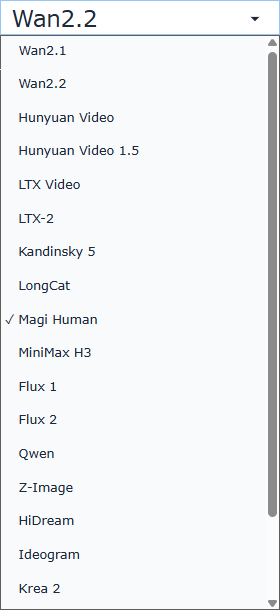
In the next dropdowns along, leave them on their defaults of Base 15B and Default:

With your model selected, have a look at the options you get with this model:
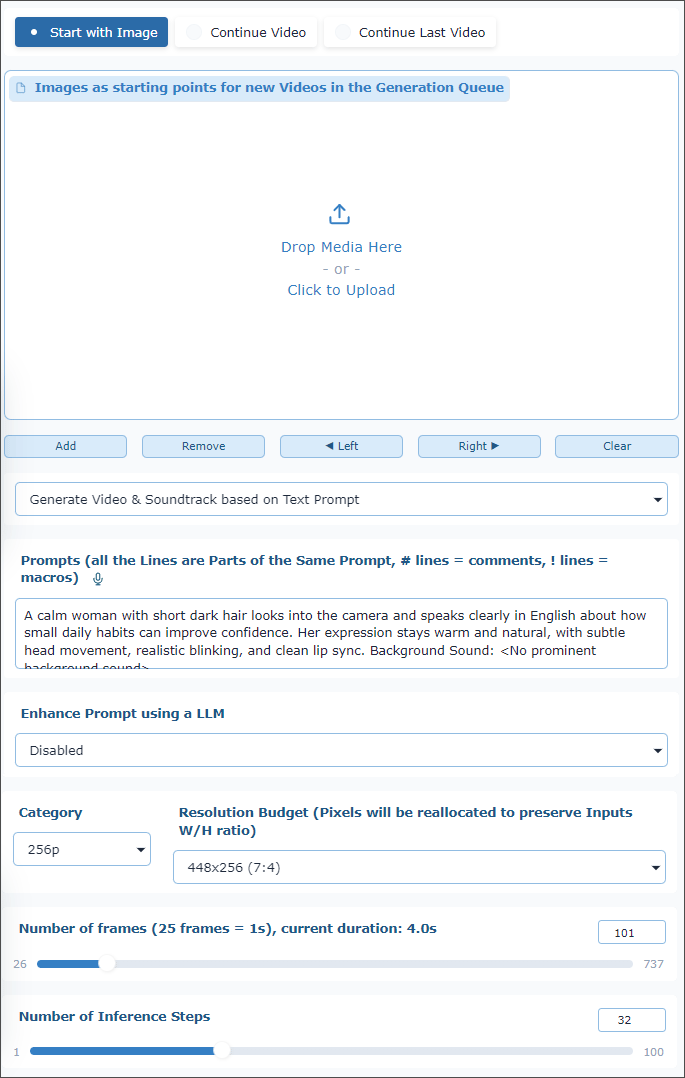
The options at the top are Start with Image, Continue Video, and Continue Last Video. We'll explore all of these.
You can try the default prompt, but you need an image to go with it. Instead, let's write our own prompt and use our own image.
Start with Image
Select the option to start with an image. You can use ours below. (All the images on this page, except the software screenshots, are AI generated by us, so feel free to use them). Right-click the image and save it to your own computer. (Hang around, if you want to use your own images. You'll learn how best to write the prompt.)
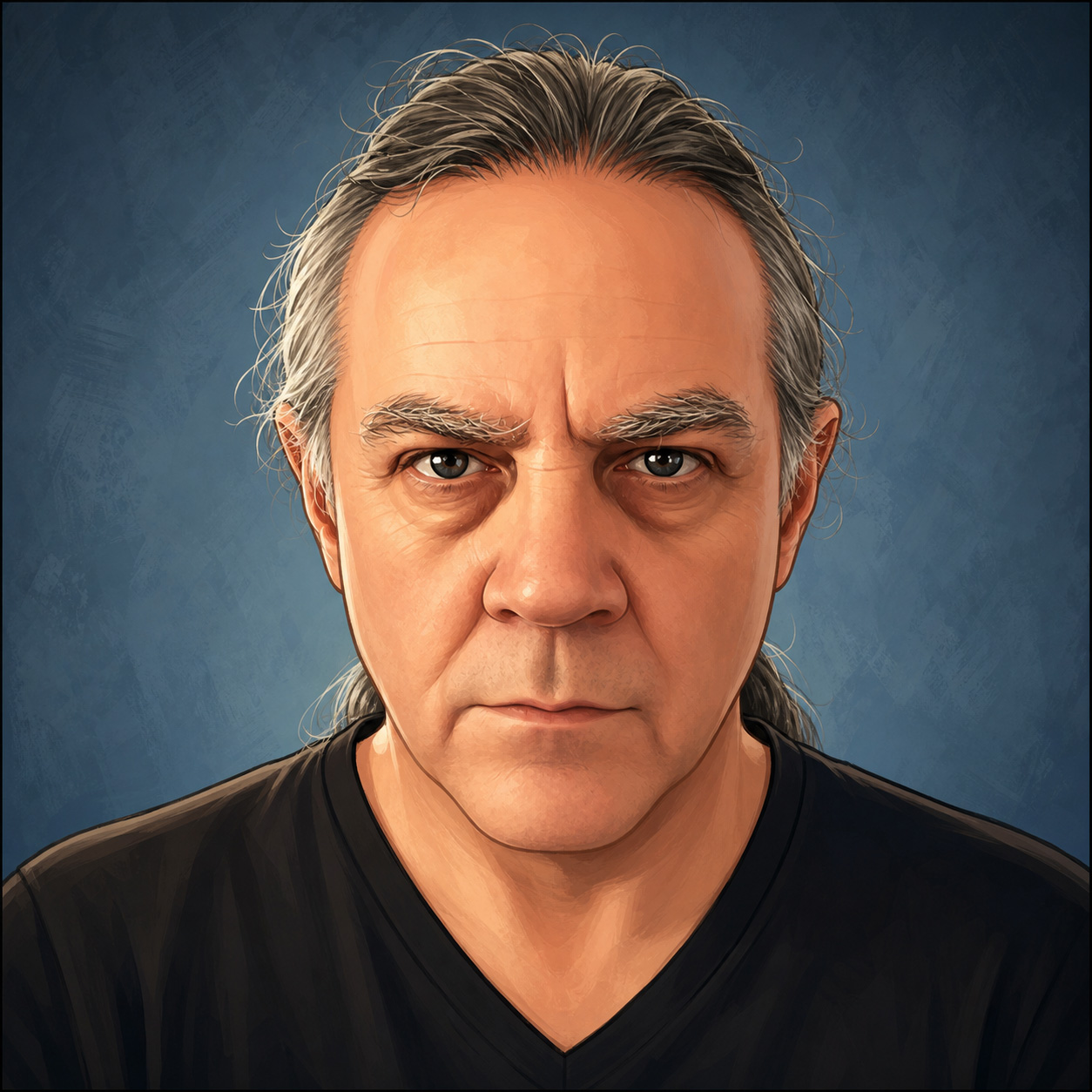
Click the box where it says, "Drop Media here or click to upload ". Select an image from the dialog box that appears.
Delete the default prompt and use the following:
A calm English man looks directly into the camera.
He speaks in a neutral British English accent, with a clear, educated
southern-English delivery - not an American accent. His expression is
serious and natural, like a television newsreader. Use subtle head movement,
realistic blinking, and clean lip sync. Static camera.
Dialog: "Hello, I'm Kenny Carney. Coming up, we'll create a video
using an image and Magi Human".
Use the following settings:
Category: 256p
Resolution Budget: 448x256 (7:4)
Number of Frames: 175
Number of Inference Steps: 32
256p may seem low quality for a video. But it's ideal if you have low VRAM. Later, you'll see a way to improve the quality by doing something called 'upscaling'.
The Resolution Budget (aspect ratio) is 7:4 - you don't need to go more widescreen than that when creating images to use with Magi Human.
The default Number of Frames is 101. This gets you a duration of 4 seconds. You can change this to get longer videos. The maximum is 29 seconds. But this can take a long time to generate, if you have low VRAM. We need 7 seconds for our speech, so change Number of Frames to 175.
Note the default Number of Inference Steps is 32. Inference Steps are the number of times the model refines a video, from random noise to finished product. Lower numbers will generally lead to faster video generation. But you'll sacrifice quality. Higher numbers don't necessarily lead to better video quality: there is a point of diminishing returns where increasing the steps no longer provides a visible improvement but continues to increase the render time.
Before going ahead and clicking the generate button, there is a setting you'll need to change.
Sliding Windows
When clicking the generate button, you may get an error that says, "Windows Frames Overlap must be at most 1". If so, make sure Advanced mode is selected below. Select the Sliding Windows tab and locate the Windows Frames Overlap option. Set it to 1 (it tends to default to 5):
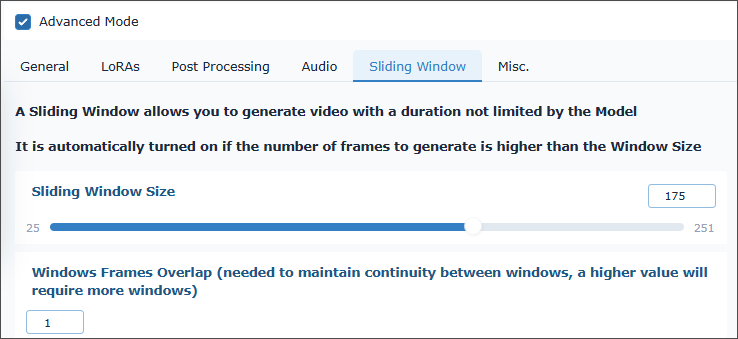
You can also make sure that the Sliding Window Size is set to the same duration as your number of frames, 175, in our case.
You can go ahead and generate your video now. Depending on how much VRAM you have, your video may take a while, maybe 10 minutes or so with 8GB of VRAM. Here's ours:
Notice it's not word perfect. He seems to stumble over the words 'an image'. This is a common fault with Magi Human - it can stumble over your dialog, or change it altogether.
Longer Videos
Of course, you'll want to create videos lasting more than a few seconds. That's where the other options come into play: Continue Video and Continue Last Video.
Select the latter option at the top, Continue Last Video. (The other option, Continue Video, can be used if you already have a video you want to add to. Again, you'll see an option to 'Drop here or click to upload'. Select the video you want to add to and then type a prompt.)
As its name suggests, Continue Last Video will use the last video you produced and continue where it left off.
For the prompt, keep it exactly the same as before but change the dialog at the end:
Dialog: "With Maji Human, you can turn a head-and-shoulder picture into a talking avatar."
Keep the number of frames at 175. Click generate again. Here's what we got:
The same stumble on 'an image' is there (plus 'a head'). It's there because we continued the last video, warts and all!
The temptation, though, is to increase the number of frames, adding something like 20 seconds of speech. By all means, try this. But you may very well find that, one, it will take longer to finish generating and, two, the speech and movement you wanted will not be what you wrote in your prompt. In other words, the AI has a tendency to wander off and do its own things the longer the number of frames it has to play with. You get better results if you keep the duration to about 4 to 8 seconds per generation.
In the video below, we extended the length of the video a few times. But notice what happens to the goblin at the end, as he gets to his feet - there is a lot of distortion. That's because Magi Human was designed for static avatars rather than players getting up and moving around.
Here is the image, if you want to try it for yourself.
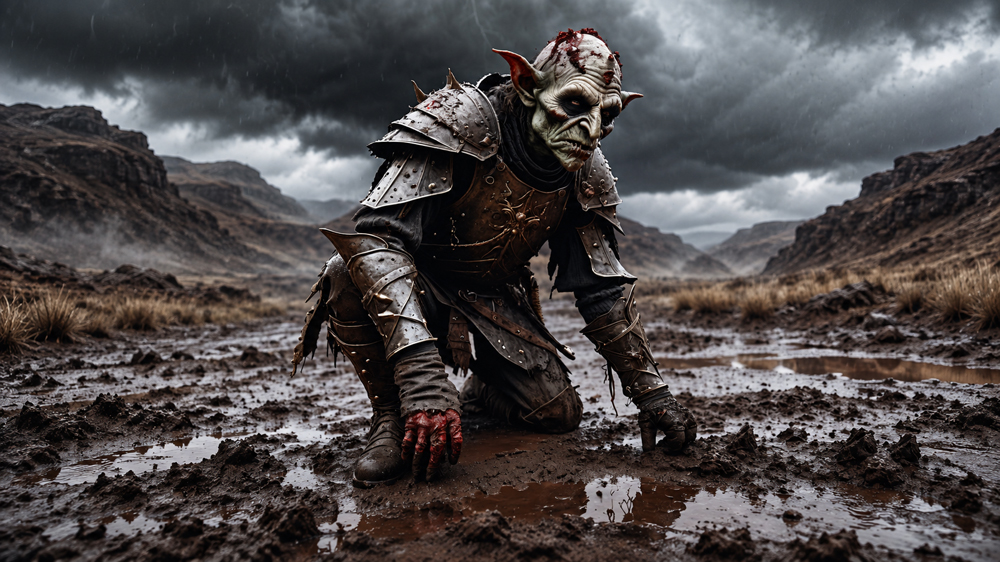
And here's the first prompt:
Use the supplied goblin image as the character
reference. Tight, static chest-up shot of the battle-worn goblin in the
same grim, rain-soaked battlefield setting. He speaks directly ahead with
a weary but defiant expression, making natural subtle head movements,
blinks and restrained mouth movement. His voice is working-class English
with a gruff Cockney delivery: bitter, sarcastic and proud, not exaggerated.
Keep the camera still, preserve the character's appearance and the gloomy,
ruined background. Accurate lip-sync.
Dialog: "They called us scum, trash of the lowest order. Cowards,
the lot of us."
Then we continued the video three times, changing the dialog and the number of frames (5 seconds, 5 seconds, 7 seconds). The full speech is:
1. "They called us scum. Trash of the
lowest order. Cowards, the lot of us."
2. "Mow us down like summer barley's what they said. Winter blight's
what they got."
3. "Time after time we held the line. Never ran. We are goblins.
We hold or we die."
Now here's an example of what Magi Human does well - creating videos of talking heads:
In the video above, we used the following prompt (notice the angle brackets to add extra instructions for the speech):
A grizzled elderly miner looks directly into
the camera and speaks with quiet, hard-earned authority. His manner is
plain-spoken and reflective, not theatrical: a life of labour has made
him tough, but he does not boast about it. He speaks slowly, pausing after
each sentence. Use a low, weathered, gravelly voice, natural lip sync,
subtle blinking, and small restrained head movements. Static camera, no
background voices or extra sounds.
Dialog <slow and measured>: "Yes, I worked the mines. Man and
boy. Tough? Sure, but you get used to tough."
Here is the image, in case you want to use it yourself:
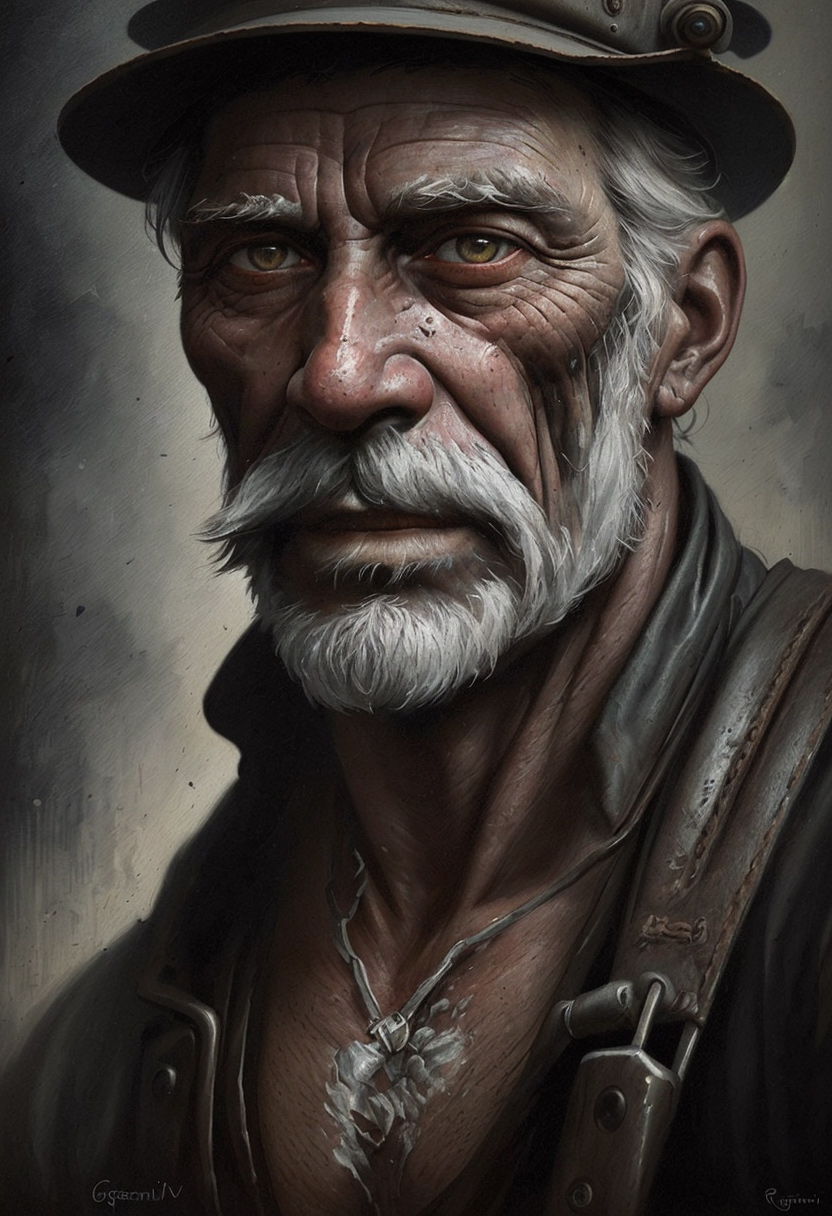
As an exercise, create a video from the miner image. Then use Continue Last Video to extend its length.
To help you with your own Magi Human prompts, here is a fuller guide on how to construct them:
ai-video-model-davinci-magihuman.html (opens in new tab)
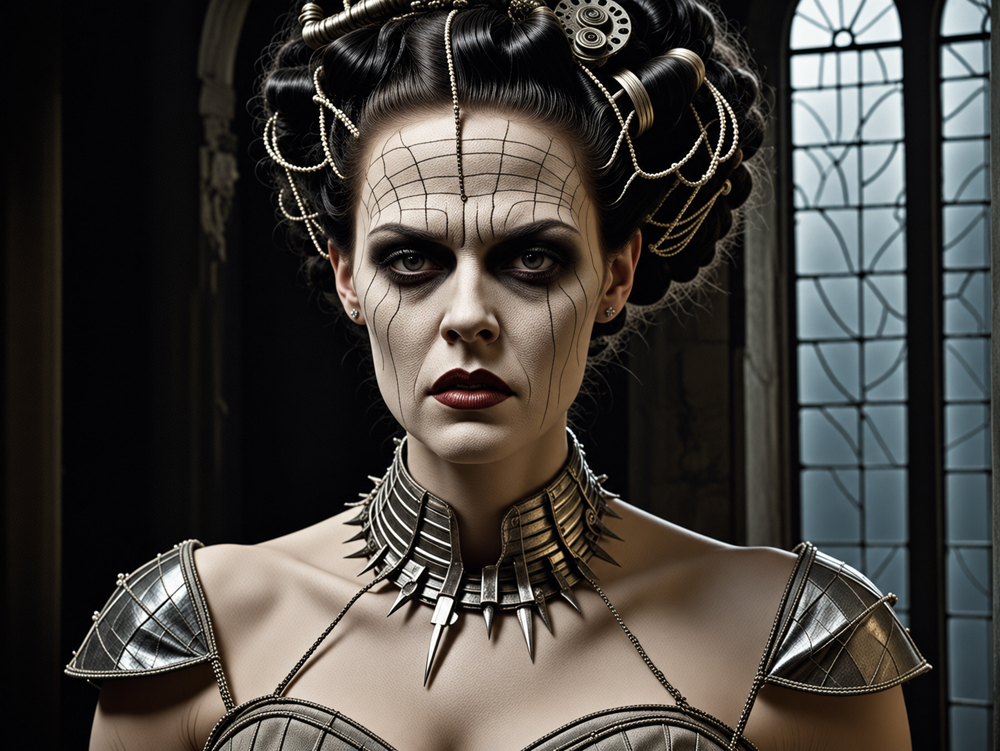
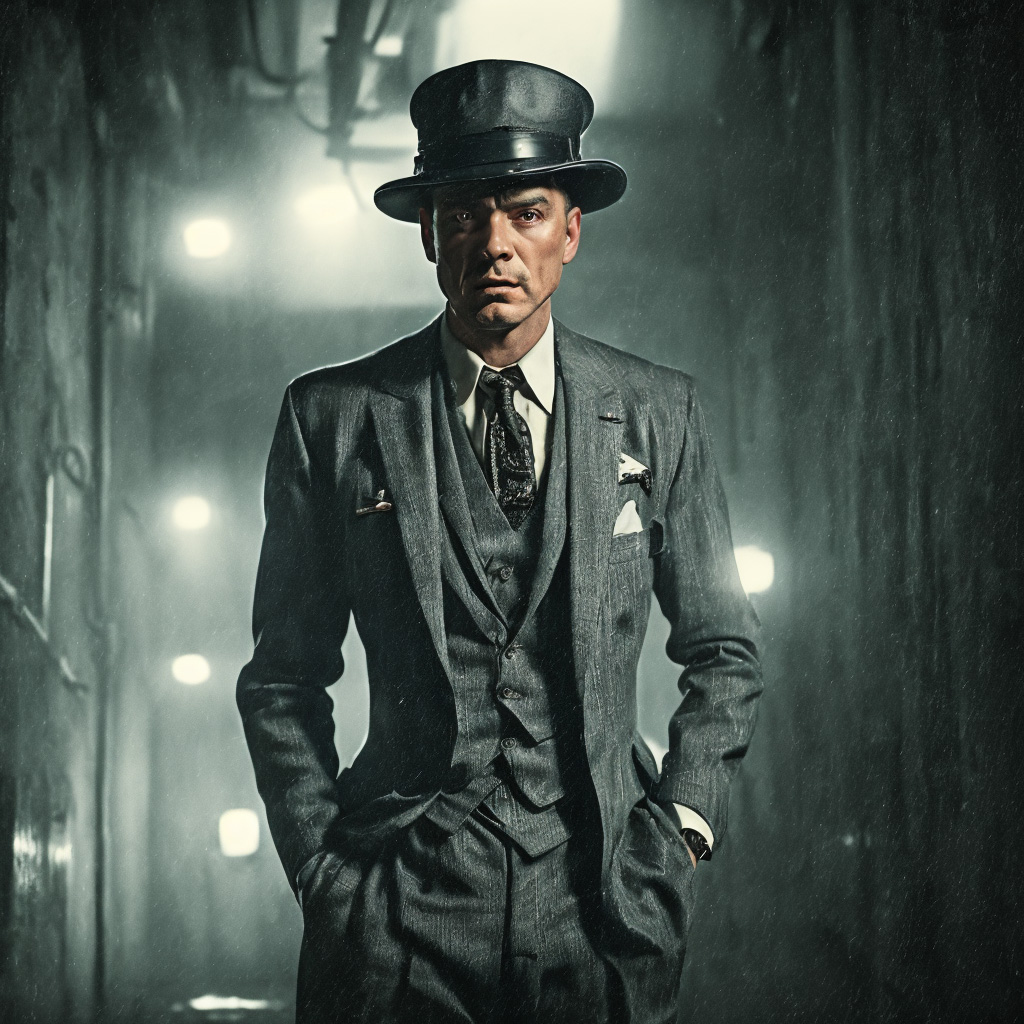
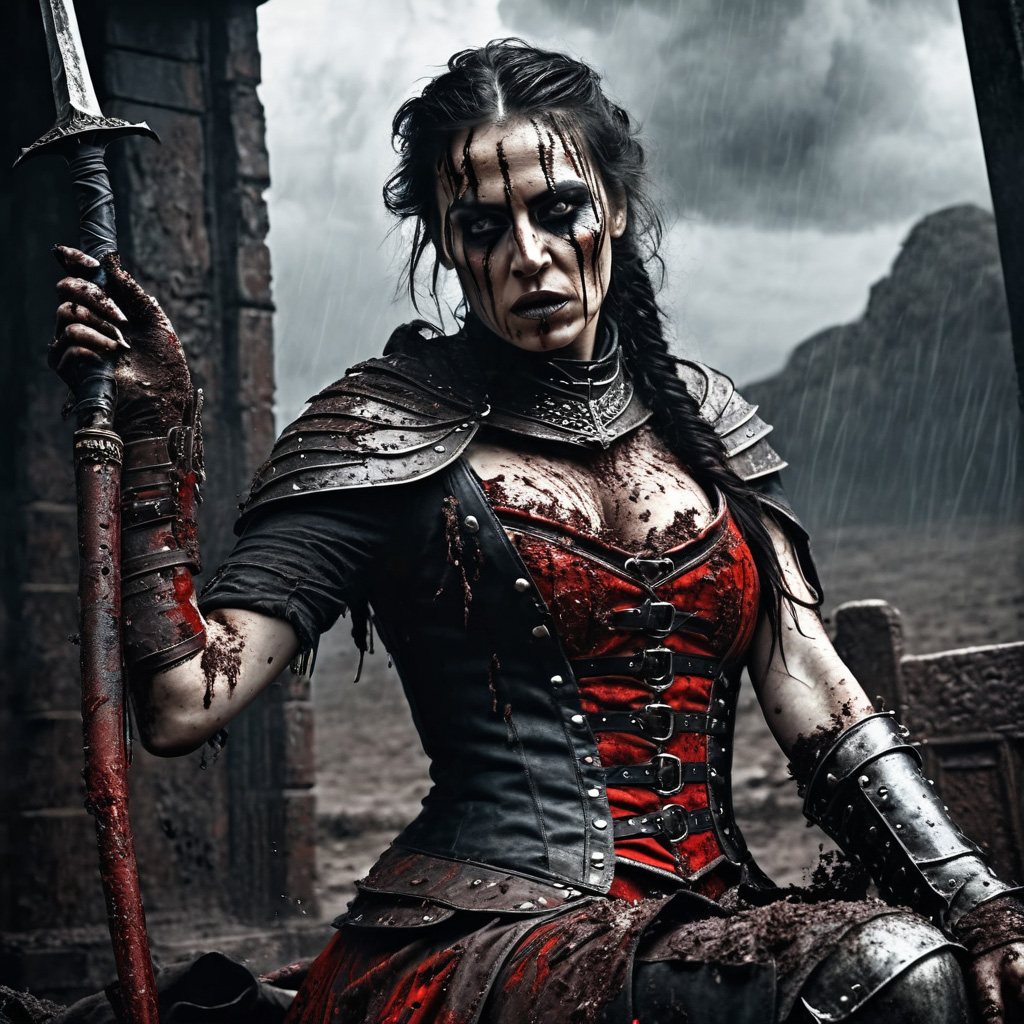
Of course, you'll want to use your own images for talking avatars. But here are some images you can use to help you get some practice.
Frankie - Inspired by the Bride of Frankenstein
Not Donald Trump

Detective - Old School
Warrior
In the next lesson, you'll learn about a technique called upscaling. You can use upscaling to improve your video picture quality.
Next - Upscale your Videos -->