Home and Learn: AI Beginners Course
AI Videos - Adding Sound
Created:
In the previous lesson, you created your very first video using AI on your own computer. But it was a silent video. In this lesson, you'll learn how to add sound. You'll also download another AI model called daVinci Magi Human. You'll use that to create a a talking-avatar video. But first a word about sound in videos.
Why AI videos are often silent
A video is made from a rapid sequence of still frames, played quickly enough to create the illusion of movement. But an AI video model does more than simply stitch separate pictures together. It has to work out how the scene should change from one frame to the next: how a person moves, how light shifts, and what stays consistent. That is already a demanding job.
Sound is a separate challenge. A video model can't simply look at a corridor and know exactly what it should sound like. Should there be footsteps? An echo? Air-conditioning? Page turns? Music? The model needs either clear instructions or a separate audio system to create those sounds. It also needs to time them correctly, so a footstep happens when a foot hits the floor.
Speech is more difficult again. For a person to appear to talk convincingly, the voice, mouth movements, facial expressions, and timing all need to agree. That is why many ordinary AI video models create silent clips by default: they concentrate on generating believable motion and leave sound for a later step.
There are two useful ways to add sound. You can create a silent video first, then use an audio tool to generate a soundtrack, sound effects, or narration and combine it with the video. Or you can use an audio-driven video model. In that case, the audio comes first and the AI creates the person's lip movements and performance around it.
Where we left off - Our Video
We previously used Pinokio to download and install Wan2GP. We then created a video. Fire up your Pinokio browser again, if it's not already started. Click on the Wan2GP item. Then click the Start item on the left menu to launch the video creation interface (It might take a minute or two). You did all this in the previous lesson.
If you remember, we created this video in the last lesson - the famous octopus fighting a crab:
But you'll notice that it is a silent video.
You can add some sound to Wan2.1 videos. Here's how.
We'll create a new video for this (You don't need to create a new video. You can add the sound to one of your silent ones.) At the top, make sure Wan2.1 is selected in the first dropdown. For speed, we'll use Text2Video 1.3B:
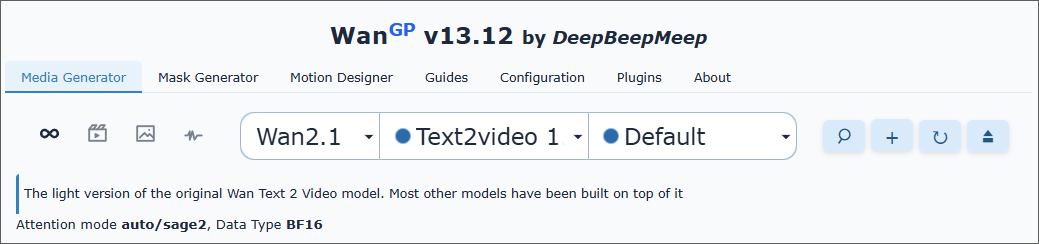
Leave the default prompt in the prompt box:
"A large orange octopus is seen resting on the bottom of the ocean floor, blending in with the sandy and rocky terrain. Its tentacles are spread out around its body, and its eyes are closed. The octopus is unaware of a king crab that is crawling towards it from behind a rock, its claws raised and ready to attack. The crab is brown and spiny, with long legs and antennae. The scene is captured from a wide angle, showing the vastness and depth of the ocean. The water is clear and blue, with rays of sunlight filtering through. The shot is sharp and crisp, with a high dynamic range. The octopus and the crab are in focus, while the background is slightly blurred, creating a depth of field effect."
Scroll down to the bottom and make sure to check the Advanced Mode option. Click the Audio tab:
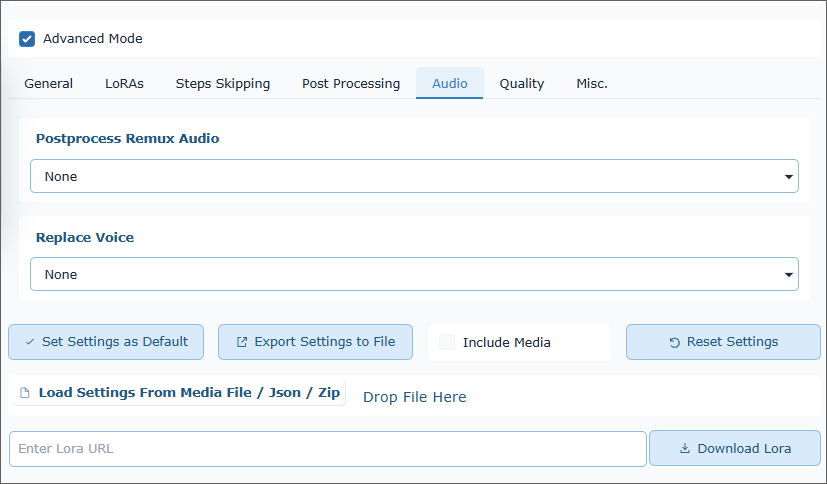
From the dropdown that says Postprocess Remux Audio, select MMAudio. (You can try the Prism option later, if you want.) But notice text boxes for Prompt and Negative Prompt appear:
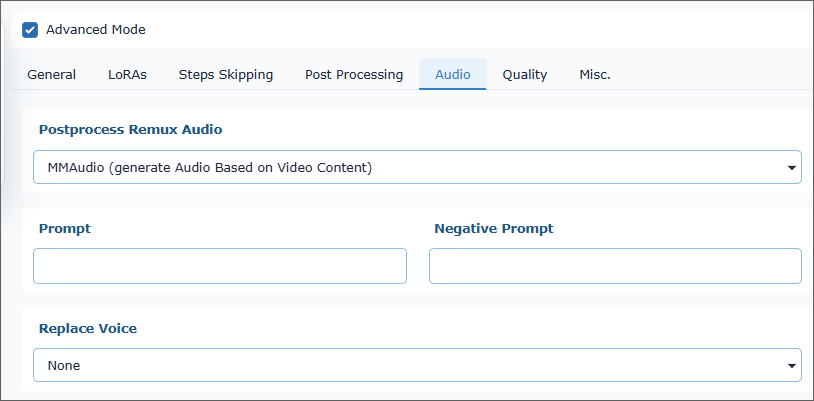
Type a prompt for your video. Try this:
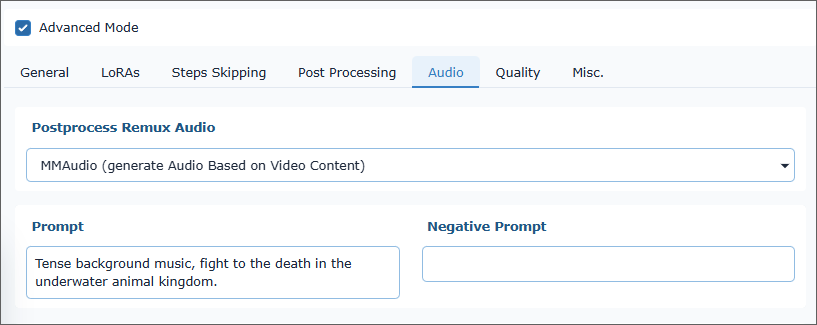
Tense background music, fight to the death in the underwater animal kingdom.
Here's what your Audio area should look like:
Now click the button to generate a new video.
Once the video is done, play it. You should now have a few seconds of sound to your video. Here's ours
(If you already have some background music, you can add that to the video.)
Now try to add a voice to a video. Type this in the prompt box in place of the previous prompt:
Voiceover. Elderly British male saying, "This. Is a fight. To the death."
Here's the prompt box:
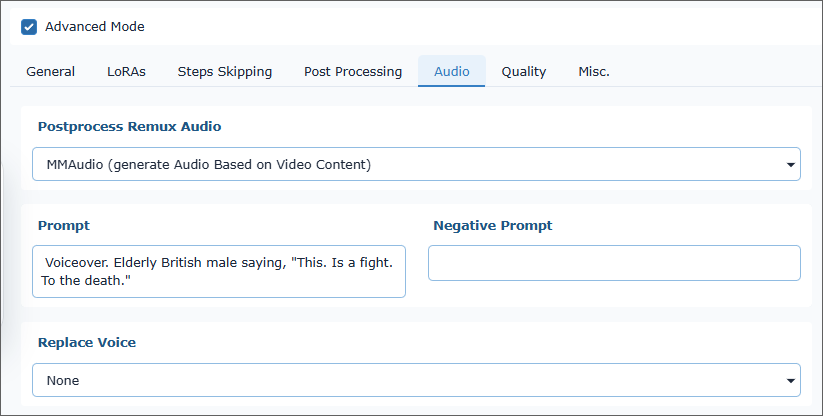
Click the button to generate a new video.
Once your new video has been created, play it back. Here's ours:
Terrible, isn't it? It tries its best. But the outcome is incomprehensible. The reason it's so awful is that Wan2.1 was not created to reproduce voices. For that, we'll need another AI model. Let's try one called Magi Human. We'll do that in the next lesson below.