Home and Learn: Intermediate Programming
Contacting the POP3 Server

Receive Email Walkthrough: for C# and VB NET Students
In this lesson, you'll learn how to contact the POP3 server and perform a handshake, letting it know you are there.
Add the following controls to your second tab, the Receive Email one.
Button
Name: BtnConnect
Text: Connect
Button
Name: BtnDelete
Text: Delete
Button
Name: BtnQuit
Text: Quit
ListBox
Name: ListBox1 (the default name)
TextBox
Name: txtServerResponse
Multiline: True
Scrollbars: Vertical
Text: Blank
TextBox
Name: txtEmail
Multiline: True
Scrollbars: Vertical
Text: Blank
Label
Name: lblEmailList
Text: Email List
Label
Name: lblServerResponse
Text: Server Response
Label
Name: lblEmail
Text: Email
When you're finished, your Receive Email tab might look something like this:

Double click your Connect button to get at a coding window.
At the top of your code, just under the Boolean and string array you've already got set up there, enter these two lines of code in bold:
VB Net
Dim HasAttachment As Boolean = False
Dim aryAttachments() As String
Dim networkStream As NetworkStream
Dim readStream As StreamReader
C#
bool hasAttachment = false;
string[] aryAttachments;
NetworkStream networkStream;
StreamReader readStream;
The first new line sets up a variable we've called networkStream. The type is NetworkStream. This is used to deal with the data to and from the POP3 server. The second variable sets up a StreamReader. You've used these before in a previous section.
Now set up a new function (method in C#):
VB Net
Private Function PopCommand(networkStream As NetworkStream, serverCommand As String) As String
End Function
C#
private string PopCommand(NetworkStream networkStream,
string serverCommand)
{
}
For this PopCommand function/method, we're setting it up to deal with the POP3 server, and then getting its response back as a String. (Don't worry if your "End Function" has a green wavy line under it in VB - it's because we haven't added any code for it yet.)
Click inside the code stub for your button. Add the following variable declarations:
VB Net
Dim popServer As New TcpClient( )
Dim popHost As String = "your_host"
Dim user As String = "your_username"
Dim pass As String = "your_password"
C#
TcpClient popServer = new TcpClient();
string popHost = "mail.homeandlearn.co.uk";
string user = "your_username";
string pass = "your_password";
The first variable sets up a New TcpClient object. TcpClient
is a class belonging to Net.Sockets. It can be used to communicate
with a POP3 server.
The next three variables are all Strings, and you should replace the
values above with your own. The Host would be something like pop.your_isp.com.
But you can get the details from your email provider. The username and
password are the ones you normally use to collect your emails.
The next thing we need to do is to try to connect to the POP3 server. Enter the following three lines in a Try … Catch block:
VB Net
popServer.Connect( popHost, 110 )
networkStream = popServer.GetStream( )
readStream = New StreamReader( networkStream )
C#
popServer.Connect(popHost, 110);
networkStream = popServer.GetStream();
readStream = new StreamReader(networkStream);
The first line is the one that tries to Connect to the POP3 Server. In between the round brackets of Connect, you type the Host you want to connect to, followed by the port number. Change this from 110, if it's different.
The second line gets the data from the pop server and then places it in our networkStream object:
networkStream = popServer.GetStream( )
The variable popServer is a TcpClient object, remember, and is dealing with the fetching and carrying of the data to and from the server. We're assigning all the data to the NetworkStream object we set up.
The third line uses our StreamReader to read the stream of text we get back. In between the round brackets of StreamReader, you need the name of your NetworkStream object.
To check if all this is working or not, add the following lines to your connect button:
VB Net
Dim returnString As String
returnString = readStream.ReadLine( ) + vbCrLf
txtServerResponse.Text = returnString
C#
string returnString = readStream.ReadLine() + "\r\n";
txtServerResponse.Text = returnString;
The important line above is this one (with the return and newline characters in C#):
return_string = read_stream.ReadLine() + vbCrLf
The line of text we got back from the server is now in our StreamReader object. We're using ReadLine to read the line of text that the POP3 server gave us back. (We're at the Handshake stage, here.) The vbCrLf or "\r\n" at the end adds a Linefeed.
Your code so far should look like ours:
VB Net

C#

To see what all this code does, start your programme. Click your Connect button. If you've correctly entered your Host details, you should see this in your Server Response text box (though you'll have different text after the +OK part):
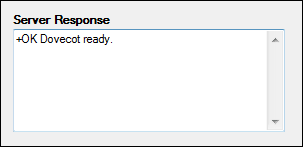
We haven't yet sent the username and password, so the response is always +OK. But only if you have correctly entered the Host details. If you didn't, the Catch part of your Try ... Catch block will activate, and you'll see an error message: "No such host exists".
Now that we have our handshake, we can try to logon with a username and password. For that, we'll need to add some code for our PopCommand function. We'll do that in the next lesson below.

Logon to the pop3 Server with Code >>
Back to the Intermediate Programming Contents Page