Home and Learn: Intermediate Programming
Do you have eMail?

Receive Email Walkthrough: for C# and VB NET Students
In the previous lesson, we logged on to the pop3 server. In this lesson, we'll write code to check if there are any emails waiting, by using the STAT command. This will get you how many emails are on the server, and the total size (in octets). Let's see how it works.
Add the following function/method to your code:
VB Net
Private Function GetMailStats( ) As String
End Function
C#
private string GetMailStats()
{
}
To issue the STAT command to the POP3 server, we only need to use our PopCommand function. Again, though, we need our NetworkStream object as the first parameter. Add this line to your new function/method:
VB Net
Dim statsResponse As String = PopCommand( networkStream, "STAT" )
C#
string statsResponse = PopCommand(networkStream, "STAT");
The final line for this function is the return value:
VB Net
Return statsResponse
C#
return statsResponse;
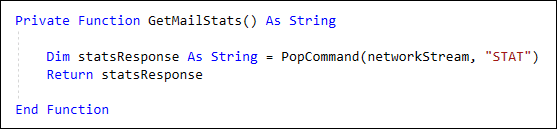
Your coding window should look like this in VB Net:
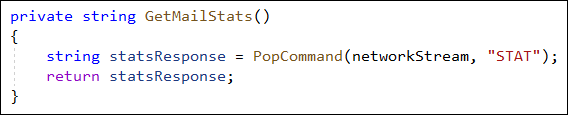
And this in C#:
Add a call to this function from your Connect button, just under your USER and PASS lines:
VB Net
Dim serverStats As String = GetMailStats( )
C#
string serverStats = GetMailStats();
Place the string in the textbox, just so that you can see what the response is:
VB Net
txtServerResponse.Text += serverStats & vbCrLf
C#
txtServerResponse.Text += serverStats + "\r\n";
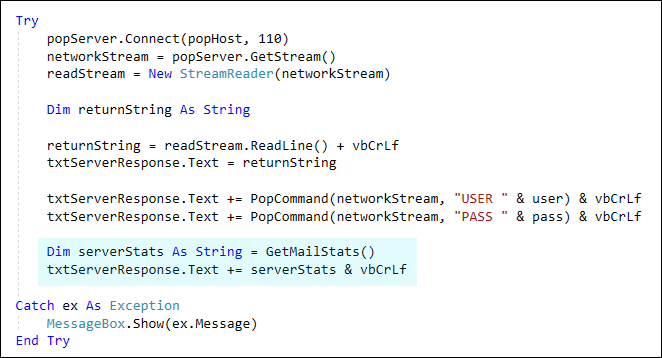
The Try … Catch block in your BtnConnect code should then look like ours:
VB Net
C#

Before running your programme and trying out the new code, send yourself an email or two, just so that you have something waiting. When you click your Connect button, your Server Response text box should show you the STATs about your emails:
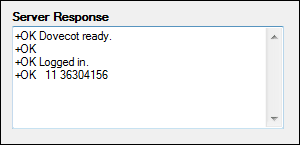
After the +OK response we have the number of emails (11) followed by the number of octets (36304156). Note the spaces in the line of text, one after +OK and one after the 11. We need to parse this line to get how many emails there are. We need the number of emails for the LIST command.
To get at the number of emails, add the following lines to your BtnConnect code, just under the two lines you've just added:
VB Net
Dim aryStats(2) As String
aryStats = serverStats.Split(" ")
txtServerResponse.Text += "number of emails: " & aryStats(1)
& vbCrLf
C#
string[] aryStats = new string[2];
aryStats = serverStats.Split(' ');
txtServerResponse.Text += "Number of emails: " + aryStats[1]
+ "\r\n";
The first line sets up a String array with three positions in it. The second line splits the server stats based on where the space is. This will get you three values. The first value is the +OK response, while the next two are the number of emails and the octet size. The third line in the code above displays the number of emails on a line of its own in the text box.
Now that you have how many emails there are on the server, you need to get a list of all of them. We'll do that in the next lesson below.

Count how many emails are on the server >>
Back to the Intermediate Programming Contents Page