Home and Learn: AI Beginners Course
Add More Image Models to InvokeAI
Created:
In this lesson, we'll add more image creation models to InvokeAI. The models we'll add from the Stable Diffusion 1.X family are CyberRealistic v4.1, Deliberate v5, and ReV Animated. We'll also install a model from a different family. All of these do different things but are still Stable Diffusion models. To get an idea of what they do, we have produced model overview pages. Each page opens in a new tab. Give them a view to get a sense of what each model is capable of:
CyberRealistic v4.1 - Model Overview
Deliberate v5 - Model Overview
Dreamshaper 8 - Model Overview
Juggernaut XL v9 - Model Overview
Model Installation
To install more models, click on the Models icon bottom left of InvokeAI:

You will be taken to the Model Manager page. Click on the Starter Models link at the top:

You can either type the name of a model in the search box. Or just scroll through the list of models below the search box:
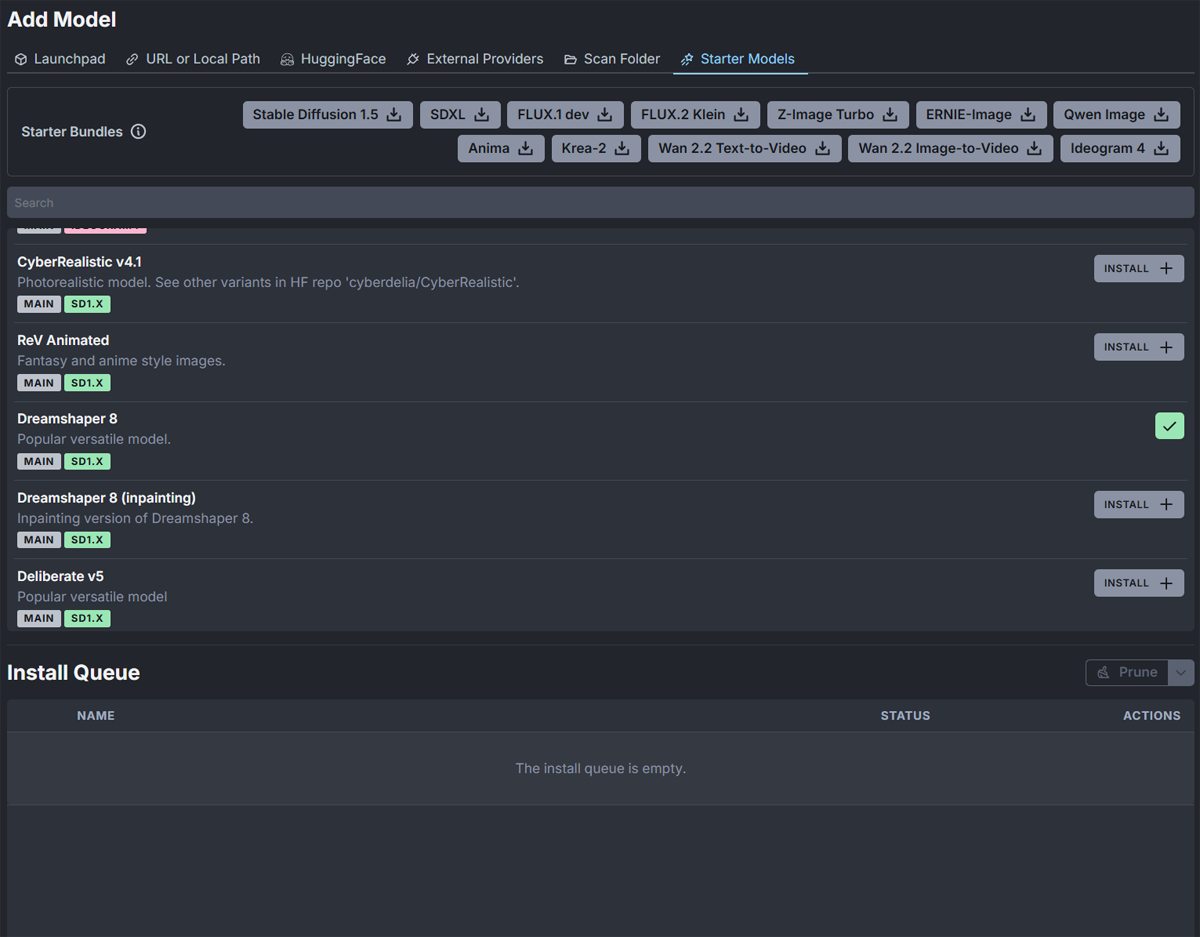
In the image above, you can see all the models we want to install. (It would be nice if we were told beforehand how big each model is, but we aren't. Perhaps in a future edition of InvokeAI.) But they are all a little over 2 gigabytes, except for ReV Animated, which is a little over 5 gigabytes. You'll need about 10 gigabytes of disk space to install all three.
You can either download them one at a time, or click Install on all the models. You'll then see them appear under the Install Queue heading:
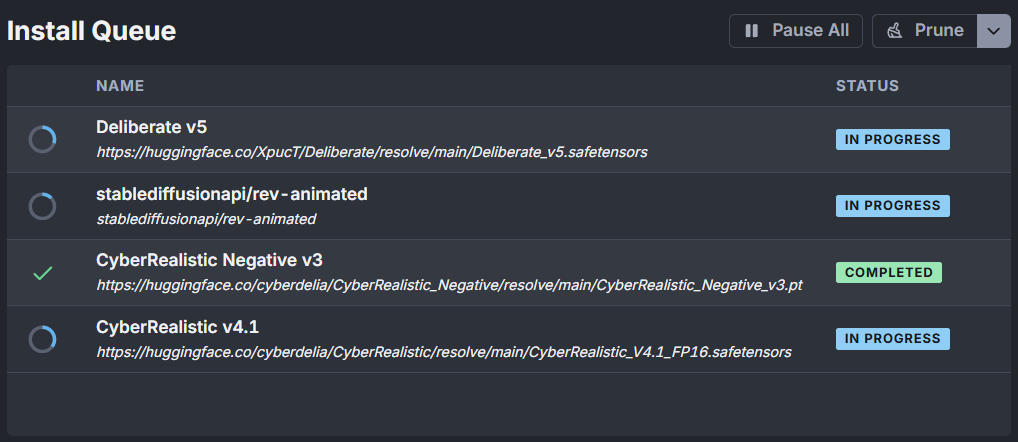
Once installed, the models will appear on the left side of the Model Manager screen:
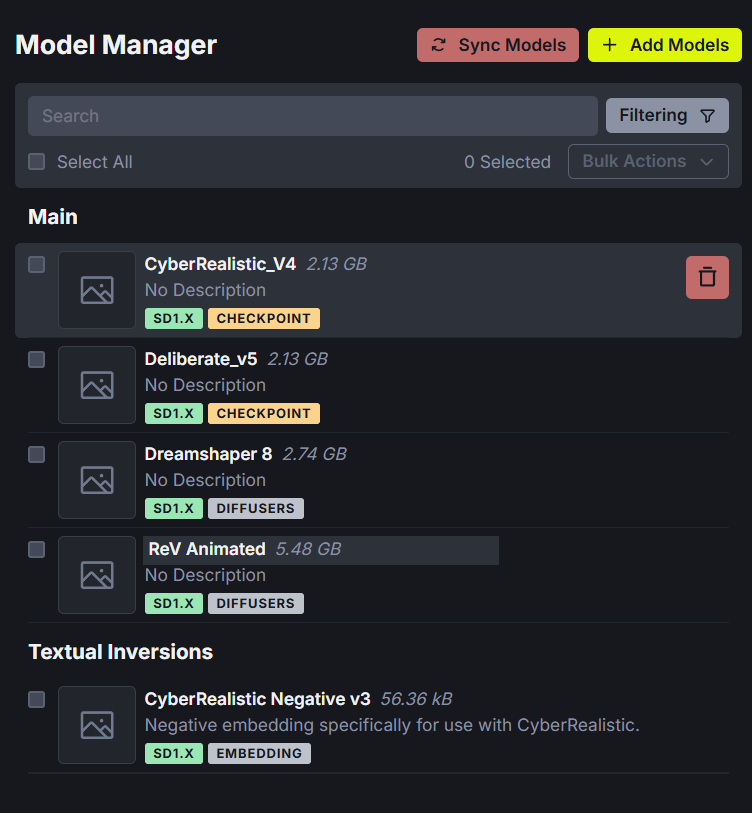
You can click a model to select it. Information about the model will then appear on the right, including the defaults for the model:
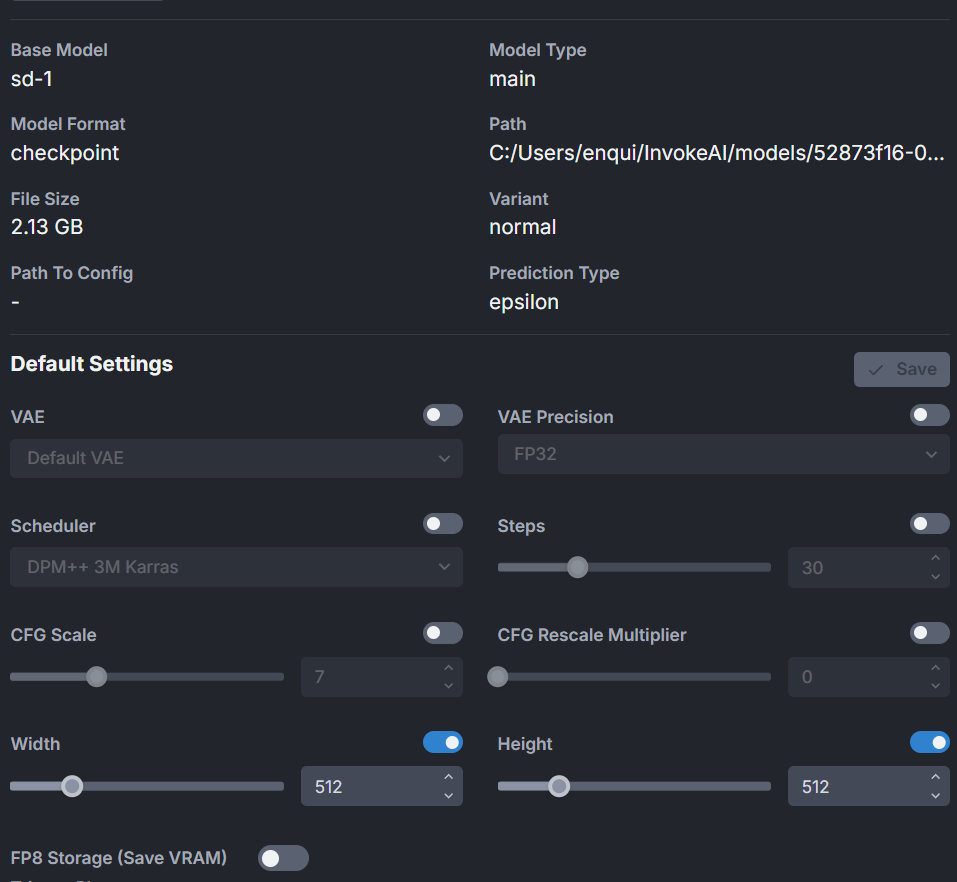
(If you want to get back to the Model Manager after viewing a model's details, click the Add Models button at the top right.)
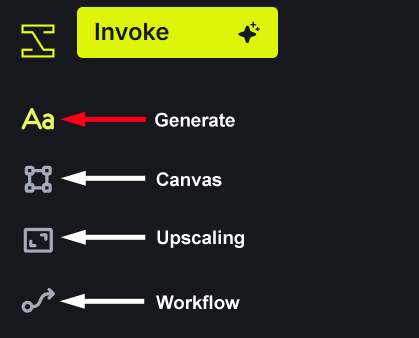
Click the Generate icon to get back to the Image creation screen:
Now, in the Generation section on the left, click the dropdown for Model. You should see all your installed models there:
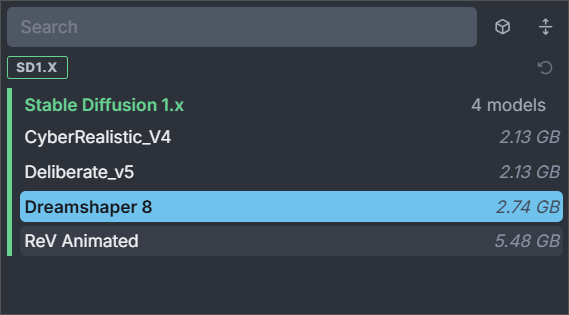
As you can see, this user has 4 models installed, all from the Stable Diffusion 1.x family. Simply select a model from the list. InvokeAI will then use your selected model to generate an image when you click the Invoke button at the top.
Let's generate some images using our new models. We'll start with CyberRealistic
CyberRealistic
Examine the model overview page and you'll see that this model has the following features:
- Designed for high-tech, sci-fi and hyper-realistic aesthetics.
- Especially suited to cyber-punk characters, neon cityscapes and futuristic hardware.
- Handles saturated blues, magentas and cyber-punk neon palettes with realistic shading.
CyberRealistic v4.1 - Model Overview
It makes sense to try a prompt that plays to those features, rather than trying to force the model to do something it's not particularly good at. What it can't do well is:
- Natural scenery, historical settings and other non-tech subjects can look overly glossy or off-style.
- Cartoon or low-detail illustration can look muddy.
- Legible text and logos remain unreliable.
- Very wide-angle compositions can suffer from distortion.
CyberRealistic, then, would not be the best fit if you wanted an image of Heathcliff romping around a field in front of an historic castle.
Instead, try this prompt:
Cinematic cyberpunk portrait of Heathcliff from Wuthering Heights, a single solitary man, Heathcliff alone, only one person in the frame, no companions, reimagined in a rain-soaked neon future: a brooding, dark-haired man in his late thirties with intense, haunted eyes and rugged, weathered features, standing alone on an elevated industrial street above a sprawling futuristic city. Black high-collared coat with subtle worn-tech details, wet hair, faint facial scar, neon magenta and electric-blue signs reflected in puddles, steam rising from vents, distant tower blocks disappearing into smog. His expression is bitter, grieving and fiercely determined - a tortured antihero shaped by loss and obsession. Dramatic cinematic lighting, shallow depth of field, realistic skin texture, detailed fabric, moody colour grading, premium sci-fi film still, photorealistic.
For the settings, you can increase the size to 1024 x 1024, or use 768 x 768. The CFG scale works well on 8, Steps 30, and Scheduler as DPM++ 3M.
We got this back:

A nice enough result. But we didn't ask for two people in the shot! If this happens to you, you can change the prompt a little. Here is a revised prompt. The new additions are in bold.
Cinematic cyberpunk portrait of Heathcliff from Wuthering Heights, a single solitary man, Heathcliff alone, only one person in the frame, no companions, reimagined in a rain-soaked neon future: a brooding, dark-haired man in his late thirties with intense, haunted eyes and rugged, weathered features, standing alone on an elevated industrial street above a sprawling futuristic city. Black high-collared coat with subtle worn-tech details, wet hair, faint facial scar, neon magenta and electric-blue signs reflected in puddles, steam rising from vents, distant tower blocks disappearing into smog. His expression is bitter, grieving and fiercely determined - a tortured antihero shaped by loss and obsession. Dramatic cinematic lighting, shallow depth of field, realistic skin texture, detailed fabric, moody colour grading, premium sci-fi film still, photorealistic.
You can also add a negative prompt:
woman, female, girl, companion, couple, romance, second person, extra person, multiple people, crowd, group, background people
Here is the new result:

Just what we wanted - a brooding, solitary Heathcliff!
It's not that CyberRealistic can't do historic landscapes. It will certainly try. But you won't be playing to its strengths if you do.
For example, try this prompt:
Cinematic portrait of Heathcliff from Wuthering Heights, a brooding, dark-haired man in his late thirties with intense, haunted eyes and rugged, weathered features, standing alone in a muddy field, a castle behind him. His expression is bitter, grieving and fiercely determined - a tortured antihero shaped by loss and obsession. Dramatic cinematic lighting, shallow depth of field, realistic skin texture, detailed fabric, moody colour grading, photorealistic.
Here's our result:
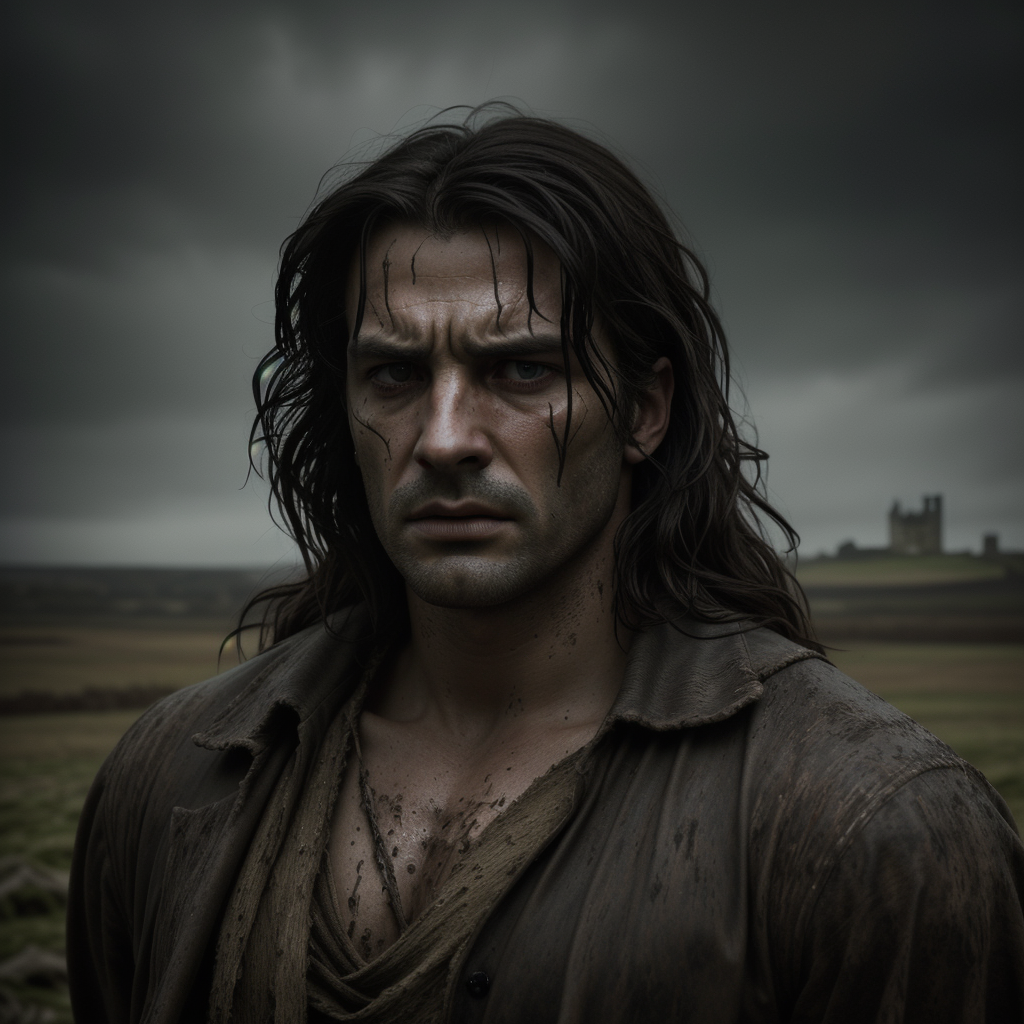
While it's not bad, as images go, there are better models that can give you a brooding, historic anti-hero, if that's what you want.
Deliberate v5
The Deliberate Stable Diffusion model is known for clear subject focus, clean detail and structured scenes. Its best fit is for illustration, product mock-ups and focused concept art.
Deliberate v5 - Model Overview
In the Generation area on the left of InvokeAI, select the Deliberate model from the list. Keep the CFG, Steps and Scheduler as they are (8, 30, and DPM++ 3M). The size can be reset down to 512 x 512.
Let's try our fragrance again. Paste this prompt into the box (you can leave out a negative prompt):
A luxury fragrance bottle for a new exotic perfume, elegant sculpted glass, deep amber liquid, brushed gold cap, placed on dark polished stone, mysterious and refined atmosphere, premium editorial product photography, dramatic studio lighting, rich shadows, shallow depth of field, highly detailed, photorealistic
Hit the Invoke button at the top to generate an image.
Compare and contrast your resulting image with the one you produced earlier. Here is our new image:

And here is the Dreamshaper image:

It is difficult to judge which is the better one. But the new one seems clearer, less blurry. And it's more intricate. There's not much in it, though - both are pretty good for a free image generator!
ReV Animated
This model is known for clean line work, vibrant colour and stylised characters. Its best fit is when you want cartoon, anime and animation-style artwork.
In the Generation area on the left of InvokeAI, select the ReV Animated model from your list. Set the CFG to 8, keep Steps at 30, but change the Scheduler to Heun. The size can be set to 1024 x 1024.
Here's a prompt you can try:
Backyard of a grand colonial house. White-painted wooden veranda, tall sash windows, trimmed hedges, flower beds, old oak tree, garden path, and warm late-afternoon sunlight. Colorful family-friendly animation style, clean bold outlines, polished 2D cartoon illustration, detailed but uncluttered garden background.
And here is the result: (To get this scene yourself, use the seed 4228920687 with the settings above.)

It's a nice cartoon-like scene, great for an illustration. But a bit dull.
Let's try out an anime style.
Try the following very simple prompt with an Euler Scheduler and the other settings the same as above (except the seed, which can be set to random):
Looking up at anime girl wearing a trench coat, gun pointed forward ready to shoot the bad guy, gritty street scene
This one is deliberately vague with not much in the way of direction. The results can be very varied. From this:
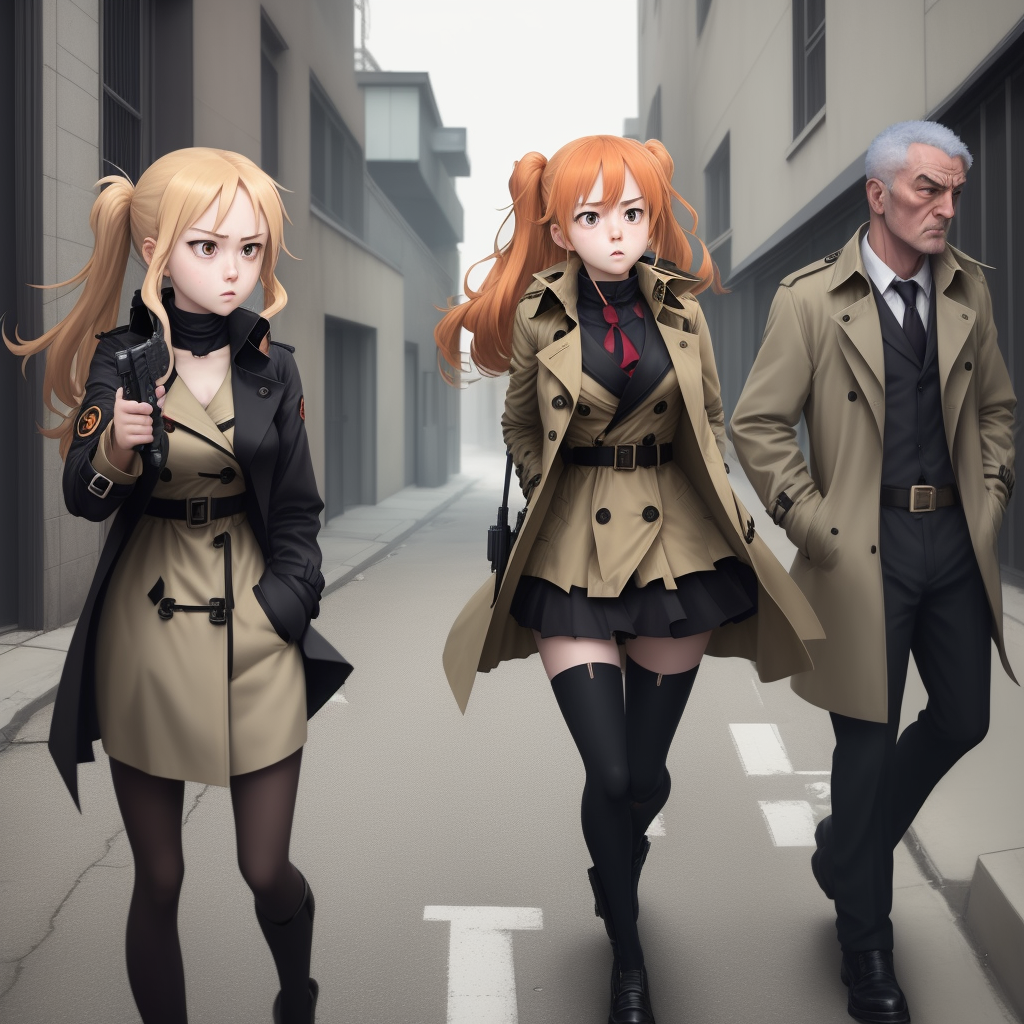
to this:

In the first image, we have three people, one of whom is male. And the gun looks awful. On the positive side - nice trenchcoats!
The second image is better, in that we have a gun pointing in the right direction. Not sure what's happening with the left hand, though.
But the style is quite good, and typical of ReV Animated anime focus.
Exercise
See if you can 'fix' whatever image InvokeAI returns for you. Write a
negative prompt and see if it makes things better or worse.
Exercise
Generate a new image with the same prompt but a fixed seed instead of
a random one. Now tweak the settings. Try these one at a time, resetting
after the generation:
- Change to the Heun scheduler.
- Increase the CFG scale.
- Decrease the CFG scale.
- Increase the number of steps.
- Decrease the number of steps.
What do you notice? What do you think works best?
The point about the exercises is to keep tweaking to get a better understanding of how the settings work.
Let's install one more model before we leave this topic.
Model families
The models you have installed so far are all Stable Diffusion 1.5 models (SD 1.5). This is said to be their family. An AI image model family is a group of models built on the same underlying engine. Think of it like a family of cars using the same type of engine: individual models may have different looks and strengths, but they share important compatibility rules.
For example, DreamShaper 8 is a model built on the Stable Diffusion 1.5 family. It can have its own style and training, but it still expects SD 1.5-style settings and compatible add-ons.
Another family, closely related, is SDXL. The SDXL (Stable Diffusion XL) family consists of several components and derivative versions designed to improve image quality, resolution, and prompt adherence over previous Stable Diffusion models. SDXL was trained to natively produce images at 1024 x 1024 pixels rather than the 512 x 512 of most SD 1.5 models. Models in this family include Juggernaut XL v9, Dreamshaper XL v2 Turbo, Architecture (RealVisXL5).
| Family | Stable Diffusion 1.5 | SDXL |
|---|---|---|
| Typical native size | 512 x 512 | 1024 x 1024 |
| Hardware demand | Lower; generally faster and easier on VRAM | Higher; usually slower and needs more VRAM |
| Strength | Huge choice of community models and LoRAs | Better prompt understanding, composition, and larger-image detail |
| Add-on compatibility | Uses SD 1.5 LoRAs | Needs SDXL LoRAs |
In practice:
- Choose SD 1.5 when you want fast experimentation, have limited VRAM, or want to use older community models such as DreamShaper 8.
- Choose SDXL when you want a stronger starting point for larger images, cleaner compositions, and more detail.
SDXL is not automatically better for every image. A well-chosen SD 1.5 model can produce excellent results, especially for its specialist style. The model family tells you the underlying generation system and what it works with; the individual model tells you its particular visual strengths.
Let's install an SDXL model. Go back to the Model screen and the Starter Models tab. In the search box, type SDXL:
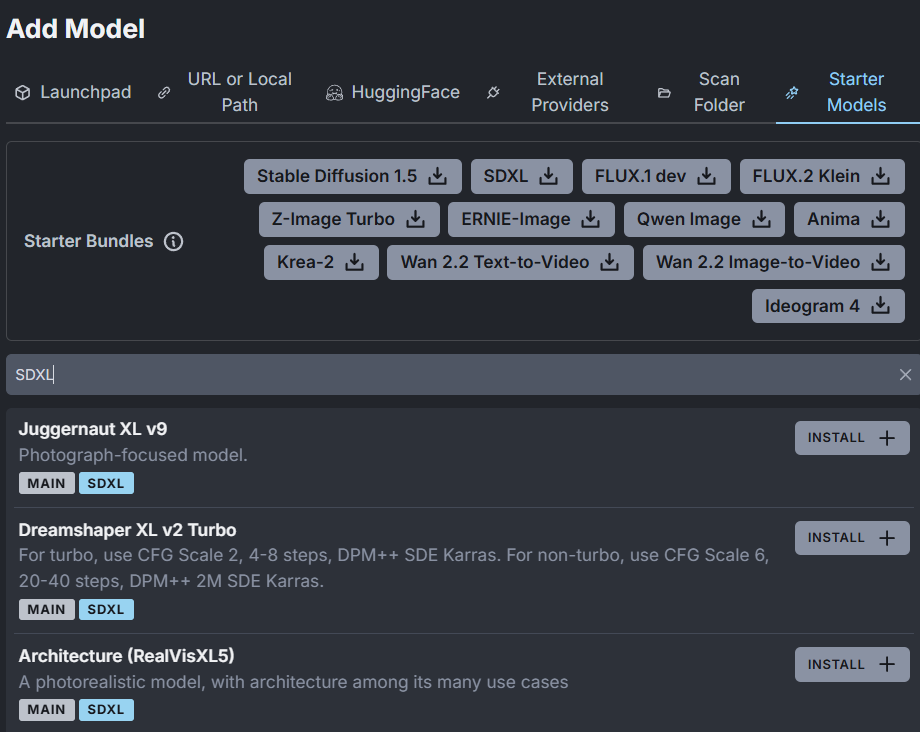
Look for the results that start with 'Main'. On the list above, install Juggernaut XL v9. It is just under 7 Gigabytes in size.
Once the install starts, you should see it appear in the Queue. After a successful install, it will appear on the left with all your other models:
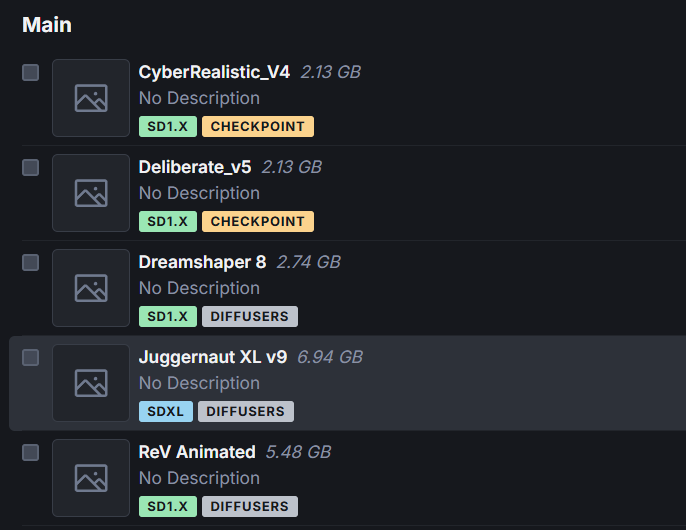
Click back on the Aa icon to get to the main image generation screen. On the Generation tab on the left, click the Model dropdown again. You should see your new SDXL model appear:
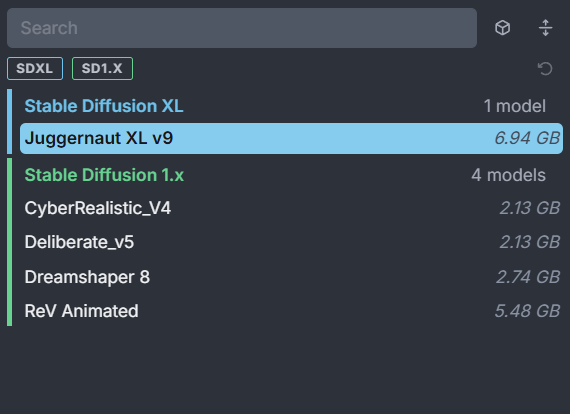
Notice that the new family has a category of its own, in blue at the top in this version of InvokeAI. Under the family name is the model you have just installed, Juggernaut XL v9.
Play around with your new model. Copy and paste a few of the prompts above, see what they do. How do they compare to the SD 1.5 models you have installed? Don't forget to read the model overview page, which is here on our site:
Juggernaut XL v9 - Model Overview
We'll leave it there and move on. In the next lesson, we'll explore negative prompts.
We'll leave it there and move on. In the next lesson, you'll add reference images to prompts and see how they work and what they do.