Home and Learn: AI Beginners Course
Negative AI Image Creation Prompts
Created:
In this lesson, we'll take a look at negative prompts in AI image creation. You'll learn what they are and how to add them in InvokeAI.
Negative Prompt in InvokeAI
Suppose you want to generate an image for a generic fragrance, something exotic with just a hint of luxury. You could use a prompt like this in Dreamshaper 8:
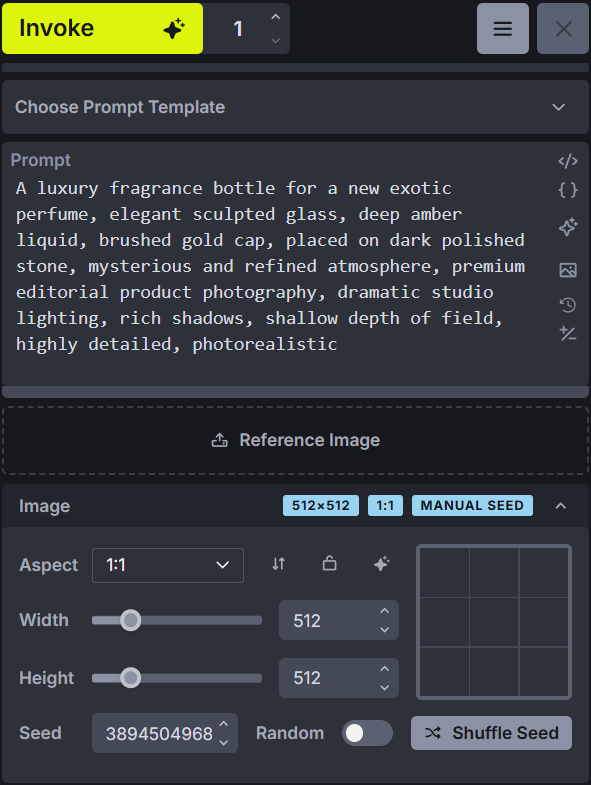
A luxury fragrance bottle for a new exotic perfume, elegant sculpted glass, deep amber liquid, brushed gold cap, placed on dark polished stone, mysterious and refined atmosphere, premium editorial product photography, dramatic studio lighting, rich shadows, shallow depth of field, highly detailed, photorealistic
In fact, go ahead and try it. Copy and paste the above prompt into the prompt box at the top.
Uncheck the Random Seed option. Now click the Shuffle Seed button. A random number will appear in the seed box. Or, if you like, you can enter ours, which is 3894504968.
Also in the Image section, keep the Aspect at 1:1. Set the Width and Height to 512 for both.
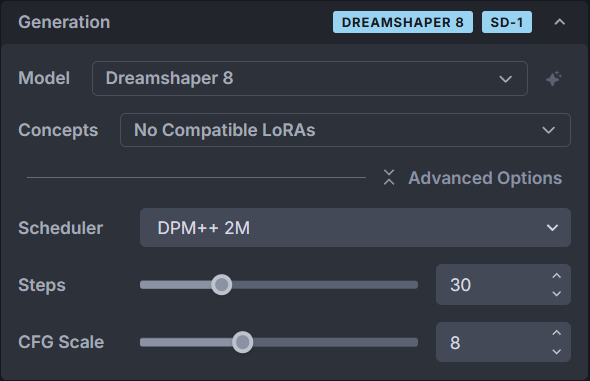
For the Generation section, make sure the values are as follows:
| Model | Dreamshaper 8 |
|---|---|
| Concepts | No compatible LoRAs |
| Scheduler | DPM++ 2M |
| Steps | 30 |
| CFG Scale | 8 |
Your Generation section should look like this:
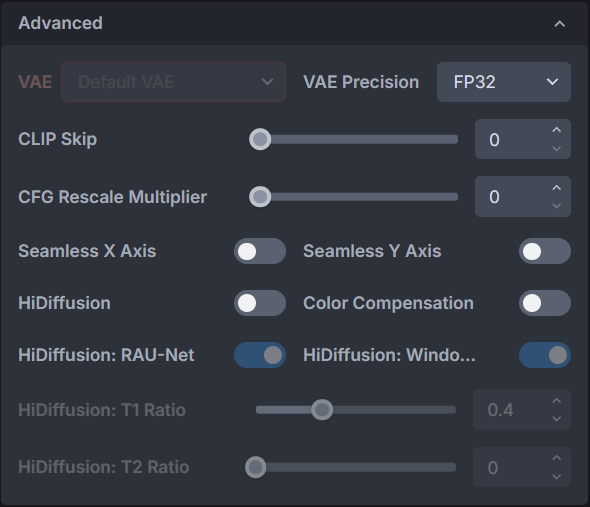
Expand the Advanced section at the bottom. You shouldn't need to change anything here. Just make sure they are the same as ours:
Once you have entered all the settings above, click the Invoke button at the top to generate 1 image. Here is the image we got back:

Now, keep all the settings the same, especially the seed. Don't tweak anything. Hit the Invoke button again to generate 1 image.
If all your other settings stay the same, you should get an identical image each time you click the Invoke button at the top.
In our image, you can see Dreamshaper 8 tried to add some text to the bottle. However, we'd like the bottle to have no text. How can we have a great shot at achieving this? With a negative prompt.
To activate the negative prompt, have a look on the right side of the prompt box:
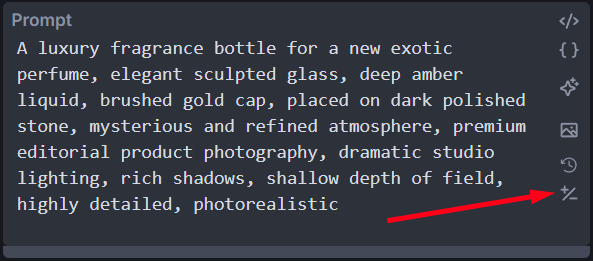
Click the +/- symbol. When you click the negative prompt icon, you'll see another text box appear, just below the prompt area:
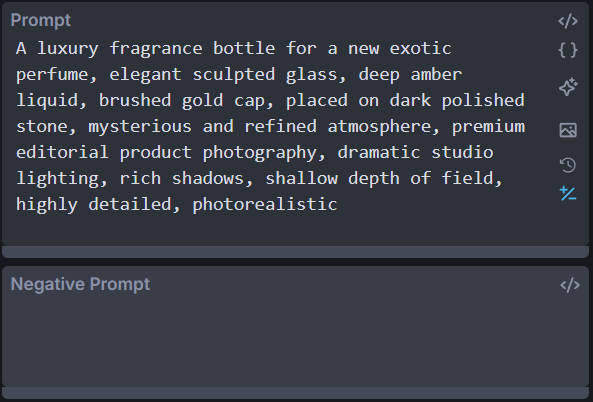
Here, you can type what you don't want the AI image model to generate, or things you don't want it to add, like extra limbs (very common in AI image generation), or text on a perfume bottle.
So type this negative prompt into the text box:
Text, letters, words, typography, fonts, label, logo, brand name, watermark, signature, barcode, packaging text, blurry, low quality, distorted bottle, warped glass, duplicate bottle, extra cap, cropped bottle.
Your two prompt boxes should look like this:

When coming up with your own negative prompts, using several related terms such as 'letters, words, label, logo' usually works more reliably than using terms like 'no text, no fonts'.
And one thing to bear in mind: just because you have added a negative prompt doesn't mean the AI model will pay attention. It's quite common to specify a negative prompt like 'one person, one human character, solo character' only for the model to totally ignore you and generate a few people in your scene, some of whom will probably have an extra limb!
But here is our new image of a fragrance bottle after the negative prompt was included:

The only thing that changed in this little experiment was the addition of a negative prompt. As for the result, you can see we were successful - there is no text on the bottle. Just what we wanted! However, the bottle itself has now totally changed. Although the colour scheme is the same, amber and brushed gold, the design is different.
If you wanted the bottle to stay the same and only remove its text, then you can do something called inpainting. Inpainting lets you mask just the small area containing the unwanted text, then ask InvokeAI to regenerate only that area. The rest of the bottle, its lighting, colours, and background remain in place.
Changing just the text is probably better achieved as a local edit rather than a negative prompt. A negative prompt influences the entire image, so it can change the bottle's shape and design as well as removing the text. In a later section, you'll learn how to use inpainting to remove just the label while keeping the bottle design as it is.
Now that you know a little about negative prompts, though, let's grab some more AI Image models. We'll do that in the next lesson.
Install more AI Image models -->