Home and Learn: Microsoft Access Course
Microsoft Access Reports
A report in Access is a way to present your data so that it looks good. You can then print it out, email it - do whatever you want with it. You can produce a report from a single table, multiple tables, and queries.
If you're not sure what a report looks like, try this.
Double-click your tblBooks table to open it up. Or simply select it in the All Access Objects area on the left. At the top of Access, locate the Create tab. On the Create tab, you'll find a Reports panel. Click the Report item:

When you click on Report, Access will produce a quick report for you in the main window. It will also display a Property Sheet on the right. Your screen will look like this:
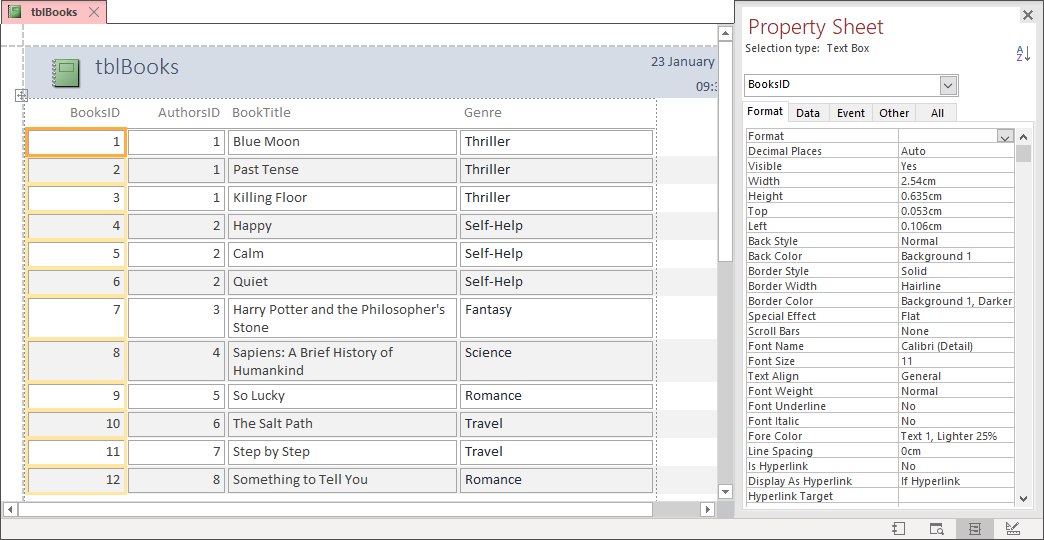
Notice the four icons in the bottom right of this screen. These are the different report views:
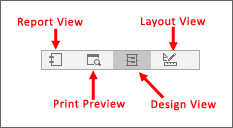
Click an icon to switch your view. You can also switch from the Ribbon at the top of Access. Select the Design Ribbon. On the left, there is a panel called Views. Click the View drop down to see the following:

The view you're in now is Layout View. If all you want is a quick print out, click Print Preview to see what your report looks like:
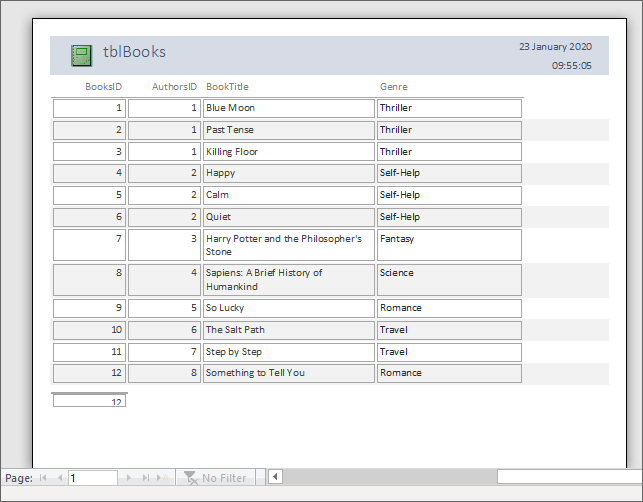
Click the Print button on the Print Preview Ribbon, if this will do for your quick report.
However, close Print Preview by clicking the red Close button on the Print Preview Ribbon. Close your report down in the main window. Don't bother saving it as we're going to create a new report and take a look at the various formatting options you can apply.
Create a Query to be used as a Report
Let's create a new query. We'll display results that show the author's last name, book title and book genre. We'll then turn this query into a report.
To create a new query, click on the Create Ribbon at the top of Access. In the Queries panel, click on Query Design:

Clicking on Query Design will bring up the Show Tables dialog box again, on top of the Query Designer in the main window. Hold down a SHIFT key on your keyboard and left-click to select all your tables. Then click the Add button:
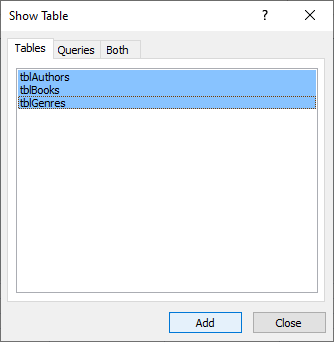
The Show Table dialog box doesn't close by itself, so click the Close button to get rid of it. Your Query Design area should look like this:
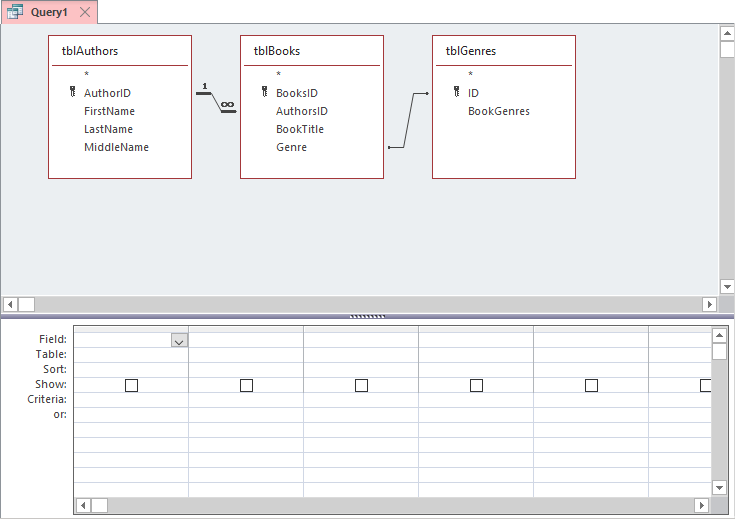
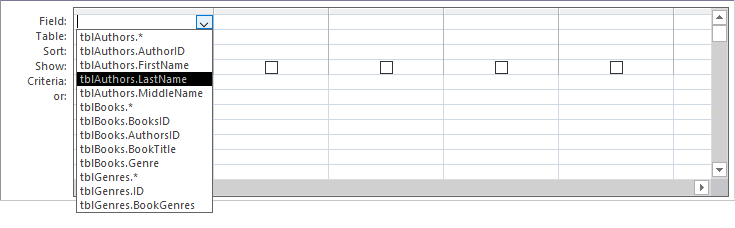
In the first Field dropdown, select tblAuthors.LastName:
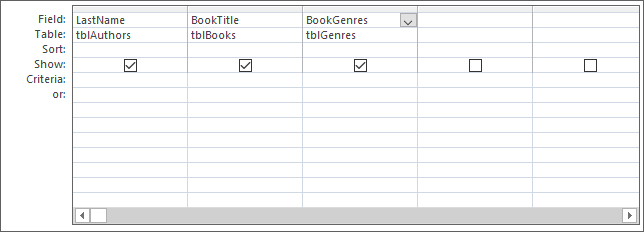
In the second column, select tblBooks.BookTitle. In the third column, select tblGenres.BookGenres. Your Query Designer will then look like this:
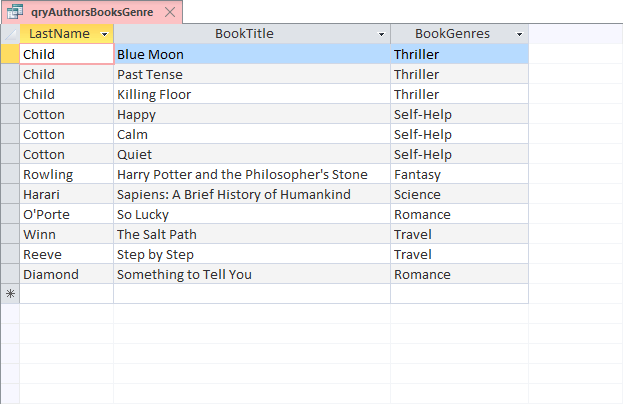
Run the query, just like you did last time. You should see a table of Authors, Books, and Genres:
Save your query. Give it the name qryAuthorsBooksGenre. Your All Access Objects area on the left should be looking like this:

We'll now create a report from this query. This time, we'll use the Report Wizard.
<-- Previous Lesson: Access Criteria | Next Lesson: The Access Report Wizard -->
<--Back to the Microsoft ACCESS Contents Page