Home and Learn: Intermediate Programming
Invert Image Pixels

Image Editing Tutorials: For C# and VB NET Students
Colour inversion is the colour left over when you deduct one RGB value from 255, which is the highest RGB value you can have. For example, take white. It has an RGB of 255, 255, 255. The invert is 0, 0, 0. This is because we first take 255 and deduct the Red part, which also 255. 255 minus 255 is obviously 0. Do the same for the Green and Blue values and you end up with black. Another example is this colour: RGB(255, 182, 193). This is a light pink. To get the inverted colour we first deduct the red part from 255, which leaves 0. To get the green part we deduct 182 from 255 which is 73. To get the blue part we deduct 193 from 255, which is 62. So the new inverted colour is RGB(0, 73, 62), which is a sort of green/blue colour.
The code to do an inversion on a whole image is just about the same as for changing the pixel colours above. The only difference is the FromArgb line:
Color newPixelColor = Color.FromArgb( oldPixelColor.R, 0, 0);
We need to deduct the old pixels value from 255. The new line, then is this:
Color newPixelColor = Color.FromArgb(255 - oldPixelColor.R, 255 - oldPixelColor.G, 255 - oldPixelColor.B);
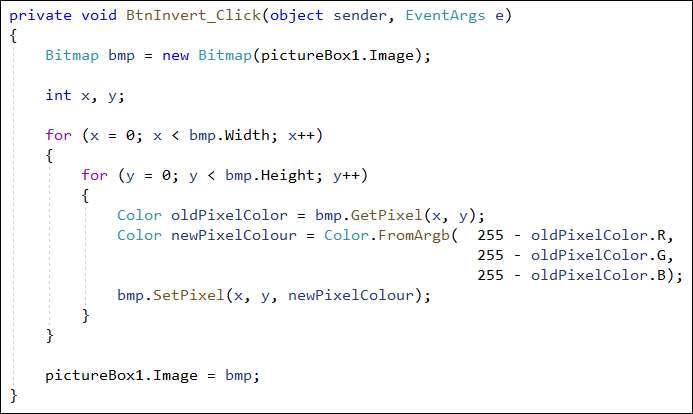
The whole of the code to invert a colour is as follows:
C#
VB
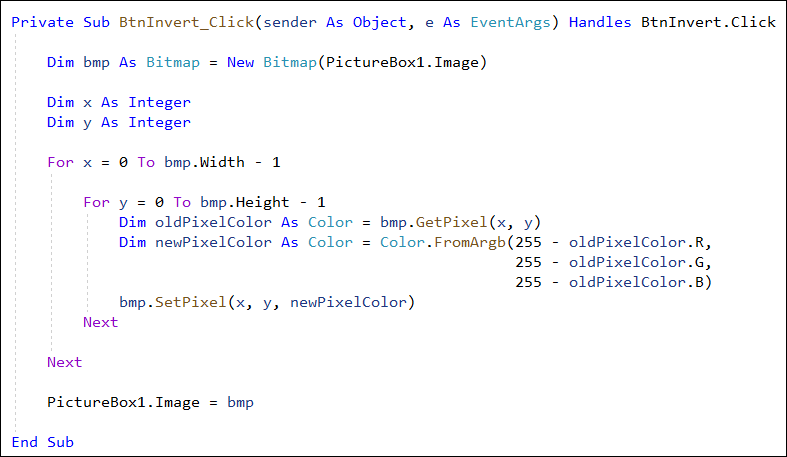
As you can see, it's the same as before except for that one newPixelColor variable line.
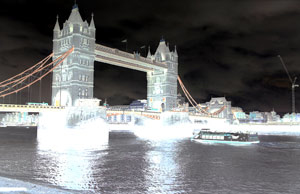
Add a button to your form. Change the text property to Invert. Add the code above. When you run your form, here's what an image would look like before the button is clicked:

And here's what it looks like after it has been inverted:
Saving an image, once you've manipulated all those pixels, is the topic of our next lesson below.

Save a Bitmap as a JPEG file >>
Back to the Intermediate Programming Contents Page