Home and Learn: Intermediate Programming
The Paint Event

Graphics Tutorials: For C# and VB NET Students
There is a slight problem to be solved with our code from the previous lesson. The code was this in VB:

And this in C#:

Run your programme, and then either minimise it to the Taskbar at the bottom of the screen, or put another running programme over the top of it. Now bring your programme to the front of the screen again, making it the focus. Your line will have disappeared! You'll have to click the button again to get the line back.
The reason your lines have disappeared is because of the way graphics work in the Windows operating system. If you minimise a programme, Windows "forgets" about it. After all, there's no use wasting memory on a programme that is not displayed. But the Windows operating system will send a message to the programme that was minimised or hidden. It issues an Invalidate command, telling it that the programme has been invalidated and therefore needs to be redrawn.
To solve the problem, we'll use the Paint event of Forms. So, in design view, click on your form to select it. In the properties area on the right, click on the lightning bolt to see a list of all the events that a form has. You'll see the Paint event, as in the image below:

Double click on the word "Paint" and it will create a code stub for you. Here it is in VB Net:

And here it is in C#:

The Paint event gets called many times a second, ensuring that whatever objects you place on a form get drawn (Painted) without you noticing any problems. You can place your graphics code here, rather than in your button.
So move all your code from your button to the Paint event.
Run your programme again. What you'll find is that the line is already drawn on the form, and that you don't need to click the button. That's because the Paint event fires as soon as the form is displayed on screen.
Minimise the form, though. Then bring it back up and make it the focus. The line will still be there. It is no longer getting erased!
However, we don't want the line to be drawn when the form loads. We want the line to be drawn when the button is clicked.
To get around this, we need to do two things: prevent the line being drawn when the form loads, and issue the Invalidate command when the button is clicked. We issue the Invalidate command to force the Paint event to be called. Once it's started, the Paint event will fire repeatedly, thus executing our code.
To prevent the line being drawn when the form loads, we can set up a variable that can be changed in various places. So add this line to the top of your coding window, inside the Class line:
VB Net
Dim drawOptions As Integer = 0
C#
int drawOptions = 0;
In the button code, we can change the value of the new variable. We can also issue the Invalidate command. Add these two lines to your button code (add the semicolons on the end in C#):
drawOptions = 1
Invalidate( )
Invalidate will automatically call the Paint event of Form1.
Except, we need to change the code in our Paint event. We can set up a Select Case statement (switch statement in C#) to check the value of the drawOptions variable. If it's zero, we won't draw anything. If it's 1, we can execute our code. So change your Paint to this in VB Net:
Dim surface As Graphics = CreateGraphics()
Dim pen1 As Pen = New Pen(Color.Black, 2)
Select Case drawOptions
Case 1
surface.DrawLine(pen1, 10, 10, 100, 10)
End Select
And this in C#:
Graphics surface = CreateGraphics();
Pen pen1 = new Pen(Color.Black, 2);
switch (drawOptions)
{
case 1:
surface.DrawLine(pen1, 10, 10, 100, 10);
break;
default:
break;
}
Your code should look like this in VB:

And this in C#:
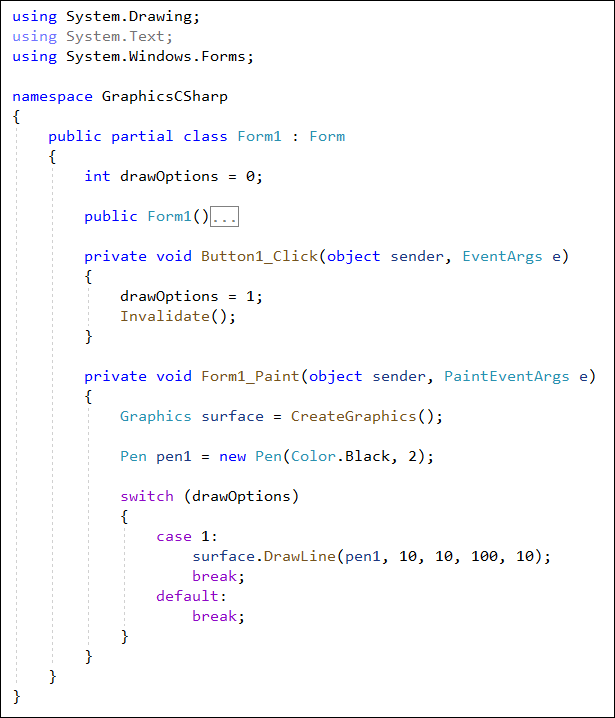
So the DrawLine code has been moved to the Case 1 option of the Select Case or switch statement. When the form first loads, drawOptions will have a value of 0. When you click the button, drawOptions will be 1, thus executing the DrawLine code.
Run your programme and test it out. The line won't be visible when the form first loads. It will only appear when the button is clicked.
Minimise your form, and then bring it back on screen. Again, the line will still be there – it won't have vanished!
Exercise
Add a new button to your form. Set the Text property to "Clear the Form". Write code for the button so that when it's clicked, whatever is drawn on the form will be cleared.
There's a little bit more tidying up we can do to our code. Because the Paint event is fired repeatedly, you don't want to keep creating graphics objects and Pens, like our code does. So the first thing we can do is to move the Pen code out of there.
Add this line to the very top of the coding window, just below the line that sets drawOptions to 0:
VB Net
Dim pen1 As Pen
C#
Pen pen1;
The line that creates the Pen object can be moved to the button code. You need to adapt the line, though. Add the following as the first line of code for the button: (Add a semicolon to the end of the line in C#):
pen1 = New Pen(Color.Black, 2)
We can also do something with the line that sets up the Graphics objects.
If you have a look at the arguments for Form1_Paint( ) you'll notice this one:
e As PaintEventArgs
Or this in C#:
PaintEventArgs e
The "e" is a variable, and has its own properties and Subs. One of these properties is a Graphics object. Which means you don't need to create a new one. You can just do this (with a semicolon on the end in C#):
e.Graphics.DrawLine( pen1, 10, 10, 100, 10 )
So delete the line where we set up a new graphics objects, the one in the Case part of the Select Case or switch statement. Change the line in Case 1 from this:
surface.DrawLine( pen_one, 10, 10, 100, 10 )
to this (agaion, semicolon on the end in C#):
e.Graphics.DrawLine( pen1, 10, 10, 100, 10 )
Your coding window should then look like ours in VB Net:

Here's the C# version:

Run your programme and click your "Draw Line" button. You should find that it works OK.
Now that we've tidied the code up a bit, let's draws some rectangles and ellipses. We'll do that in the next lesson below.

Back to the Intermediate Programming Contents Page