Home and Learn: Intermediate Programming
The .NET Project - Design a User Form for an Email Client

Send Email Walkthrough: for C# and VB NET Students
In this project, you'll write your own email client. You'll learn how to send emails and how to receive them. This is an intermediate project and is for students of Visual Basic .Net and C# .Net. Let's make a start.
Create a new Windows Form project for this. Call it anything you like. Add a TabControl to your new form. The TabControl is in the Containers section:

Shortly, we'll resize the TabControl so that it takes up the whole of the form. For now, make sure that the TabControl itself is select and not just a tab page. The top of the Properties window should say tabControl1 and not tabPage1. To make sure, don't click in the big white area but on the tab itself, right at the top.
With the TabControl selected, locate the TabPages property:
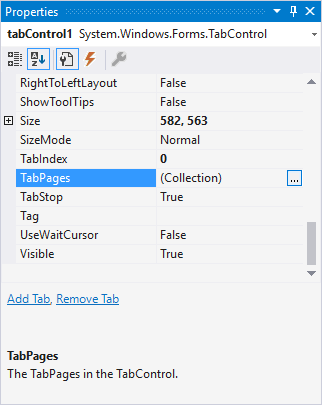
Now click the button on the right, the one with the three dots in it. You should see a dialog box appear. This one:
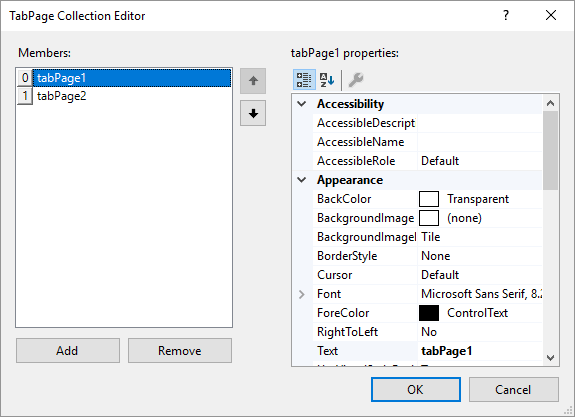
This is the TabPage Collection Editor, where you can change properties about a specific tab. Let's change the default text at the top.
With the tabPage1 item selected under Members on the left, locate the Text property. Change it to Send Emails:
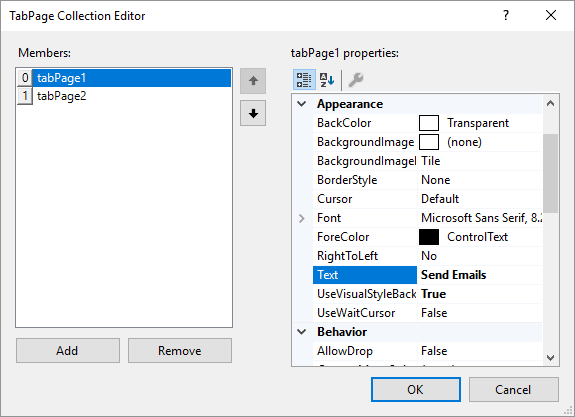
Now select tabPage2 under Members and change the Text property to Receive Emails:

Click OK and the top of your tabs will be renamed.
Now Dock the TabControl by locating the Dock property. Change it to Fill by clicking the big button in the middle:
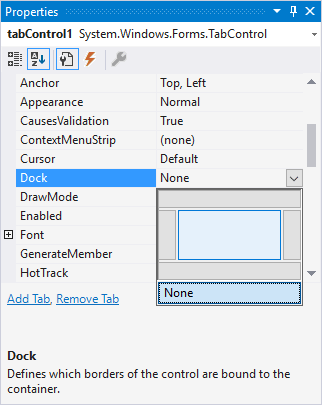
Run your form. Change its size and you should find that the tabs resize, which is what the Dock property does for you:

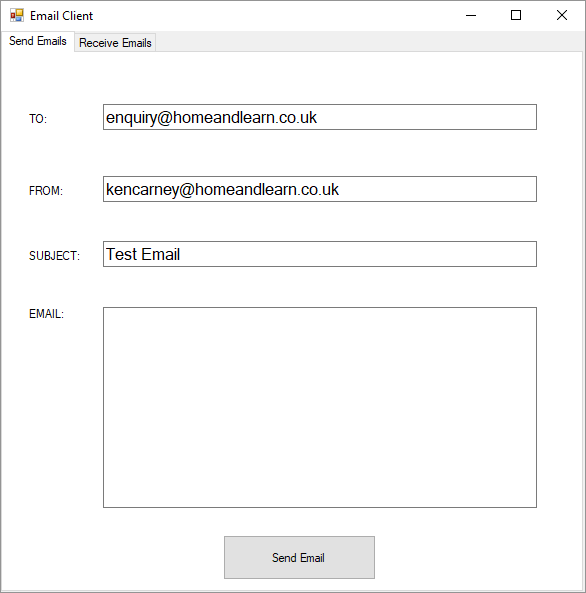
Now add the following controls to your Send Email Tab:
TextBox1
Name: txtEmailTo
Text: An Email Address of your Choice
TextBox2
Name: txtEmailFrom
Text: An Email Address of your Choice
TextBox3
Name: txtEmailSubject
Text: Any Text of your Choice
TextBox4
Name: txtEmailBody
Text: Blank
MultiLine: True
Label 1
Text: TO:
Label 2
Text: FROM:
Label 3
Text: SUBJECT:
Button
Name: BtnSend
Text: Send Email
When you've finished adding all the controls, it should look something like this:
With the form designed, we can start on the coding. We'll start in the next lesson below.

Back to the Intermediate Programming Contents Page