Home and Learn: Microsoft Excel Course
Paste Special in Excel
In the previous section, you created new areas of your spreadsheet that look like this:
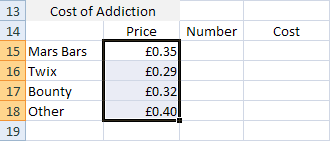
We have prices in the B column. Under the Number heading, we're going to put how many of each chocolate bar we ate in one week: how many Mars Bars we ate will go in cell C15, how many Twix will go in cell C16, how many Bounty bars will go in cell C17, and how many other chocolate bars we ate will go in cell C18.
But we already have the weekly totals elsewhere in the spreadsheet, so we don't need to calculate them all over again. We can Copy and Paste the formula over to cells C15, C16, C17 and C18.
Paste Special in Excel
We have the weekly totals for each chocolate bar in the J column, under the Individual Totals heading.
- So highlight your four totals in the J column of your spreadsheet
- From the Clipboard panel, click Copy
- You'll see the marching ants again:

- Now, under the Numbers heading, click into cell C15
- Press the enter key on your keyboard to paste the numbers across
What you should notice is that something has gone wrong!
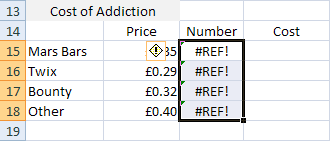
So what happened? Why have all those strange #REF comments appeared in the cells?
If you hold your mouse over the exclamation mark in the yellow diamond, you'll see this:

That complex error message means that Excel tried to paste the formulas over. But the cell references it has are all for the J column.
To solve the problem, we can paste the values over and not the formula.
- Click the left curved arrow at the very top of Excel to Undo (or press CTRL + Z on your keyboard)
- Highlight the four cells in the J column again
- From the Clipboard panel, click copy

- Highlight the cells C15 to C18
- Using your right mouse button, click anywhere in the highlighted area. You'll see the following menu::
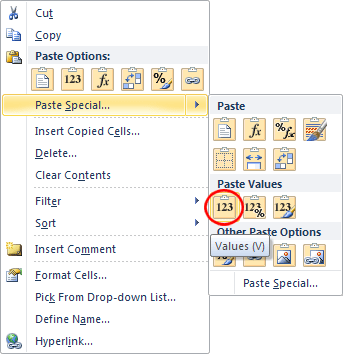
- From the menu, click Paste Special with your left mouse button. (If a submenu appears, select Paste Special. From the submenu, select the Values option, which is circled in red in our image.)
- The Paste Special dialogue box will appear:
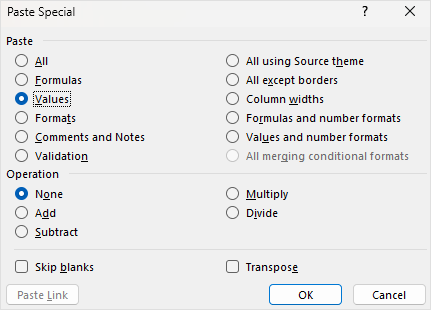
The item that is selected by default is All, under the Paste option at the top. Select the Values option instead. Then click the OK button.
What you've just done is to tell Excel to paste only the Values (the numbers) across, and not the formulas we used to get these values.If you did it correctly, your spreadsheet should look ours below:

Of course, it would have been easy just to type out the values again, since we only have 4. But if you have a lot of values to paste over then the Paste Special dialogue box or menu can save you a lot of time.
Now that we have a price for each chocolate bar, and how many we are eating each week, we can calculate how much our addiction is costing us. For that, we'll need to multiply.
<--Back to the Excel Contents Page