Home and Learn: Android Course
Lesson Updated July 2023
Android XML Strings
You don't have to drag and drop controls onto your layouts in the designer. If you wanted to, you could do everything in XML code. Click on the Code tab at the top of the Android Studio designer:
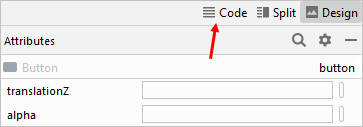
You'll then see all the XML for your design.
Whenever you drop a control onto the design surface, Android Studio is building XML in the background. For example, here's the XML for the TextView:
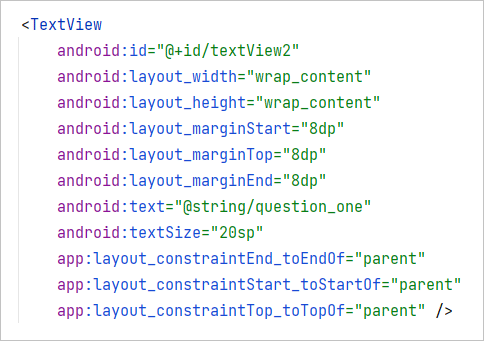
So if we wanted to set a left margin of 8dp, we only needed to type this:
android:layout_marginStart="8dp"
The constraints we added are at the bottom:
app:layout_constraintEnd_toEndOf="parent"
app:layout_constraintStart_toStartOf="parent"
app:layout_constraintTop_toTopOf="parent"
However, it's incredibly difficult to remember all the XML tags, as there are just so many of them. Whenever we can, then, we'll be designing our apps via the Design tab instead of the Code tab. We still may need to tweak the XML, though.
XML Strings
One XML file we can take a look at is called strings.xml, which can be found in the res > values folder of the Project Files area of Android Studio. The idea is that you put all your text strings in this file. If you want text on a button, for example, you don't type it directly into the properties area like we did. You place the text in the strings file and then pull it from there. Let's see how. It's quite easy.
First of all, have a look at right-hand side of the design toolbar and you'll see a warning triangle, either red or yellow:

Click the triangle to reveal a window at the bottom of Android Studio. In the image below, a number of problems have been highlighted:

Click on a problem in the list and a Details panel appears to the right. Here's the Details pane for the Hardcoded text issue:
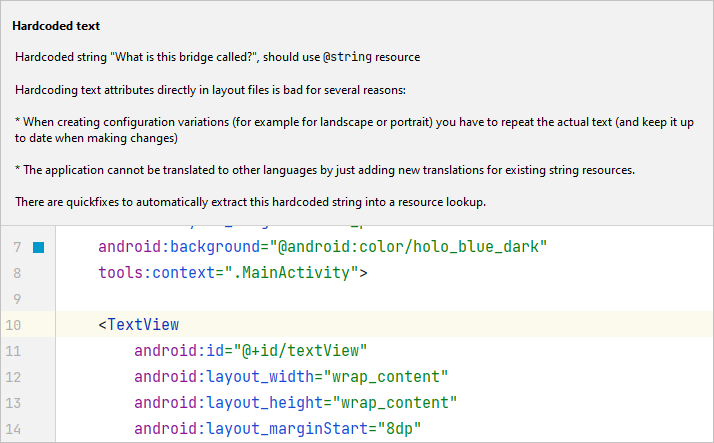
The Details panel lists the reasons why hardcoded text is bad. Rather than hardcoding the text, you can add your text to the strings.xml file. So where is this string resource?
Expand the Project Explorer on the left, and the res folder. Inside the res folder is a folder called values. Expand this folder to see three XML files:

The file the issue list is talking about is the strings.xml one. Double click to open it. You should see the following:
<resources>
<string name:"app_name">Quiz Layout</string>
</resources>
This is a key/value pair. In this case, the key is called name. The value for name is app_name. This goes between double quotes. The value for the app_name is Quiz Layout. This goes between the pointy brackets of the string tag. You can delete Quiz Layout and type anything you like here:
<resources>
<string name:"app_name">Best Quiz Ever!</string>
</resources>
You can set up new string tags here as well, if you like:
<resources>
<string name:"button_one">London Bridge</string>
</resources>
You can set up as many strings as you want, here. However, there is another way to add strings to this file.
Click on your activity_main.xml file. Make sure you are on the Design tab, and not the Code tab. Now select the widget you want to add text to. In the Attributes area on the right of Android Studio, locate the text property. Delete any text in the textbox. Click the Pick a Resource button just to the right of the text area:

When you click the button, you should see this dialogue box appear:

Click the plus button indicated by a red arrow, in the image above. You'll see this menu:
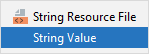
Select String Value from the menu. You will then see another dialogue box popping up. This one:

The Resource name at the top is the name part of the XML you saw earlier; the Resource value was the part between the pointy brackets of the string tag:

In the Resource name box, then, type a name for your resource. (The name can't have spaces.) In the Resource value box, type the text you want to appear in things like Text Views, or on Buttons.

Click OK and you will be returned to Design view. Look at the text property now, though:

The text says @string/button_one. This is what the issue list wanted - a value from a resource file.
Now have a look at your strings.xml file again. You'll see your new string has been added:

We'll now move on and explore Android Activities.
< Android Buttons | Android Activities >
Back to the Android Contents Page