Home and Learn: Vibe Coding Course
OpenCode
Previously, we installed Codex and used that as our Agentic AI for vibe coding. However, although you can get a limited number of tokens for free, hitting the usage limit as you're halfway through a project can be very frustrating, especially if you can't afford the monthly fees that would increase your usage limits.
One solution is to use Codex with a free, local AI model, such as Gemma 4 or Qwen 3.6. Another is to use OpenCode, which is the subject of this lesson
What is OpenCode?
OpenCode is an open source 'AI coding agent'. Think of it as a program that lets you chat with an AI while it works inside a software project. It can inspect files, explain unfamiliar code, create a plan, edit files, run commands, debug problems, and help implement features. It can be used from a terminal, desktop app, or IDE extension, not just from a web browser. More or less the same thing as the Codex agent we've been using so far.
OpenCode is mainly designed for programming, but it is not limited to writing code. You can ask it to explain documentation, research a technical question, write project documentation, plan a feature, review changes, or perform other multi-step tasks. Its built-in agents include general-purpose, planning, documentation, and code-review-style workflows. However, it is best understood as a developer-focused generative AI tool, rather than a general-purpose chatbot like ChatGPT.
The important distinction is that OpenCode is primarily the tool or interface not one single AI model. It can connect to more than 75 model providers, including OpenAI, Anthropic, Google, GitHub Copilot, OpenCode's own services, and local models running on your computer. You choose which model supplies the intelligence, while OpenCode provides the coding-agent features around it - file access, tool use, permissions, planning, and editing.
Compared with OpenAI's Codex, OpenCode is more model-neutral and customizable. Codex is OpenAI's own coding agent, closely integrated with OpenAI's models, ChatGPT plans, Codex CLI, IDE extensions, and cloud features. OpenCode can use OpenAI models, including Codex models when available, but it can also switch to models from other companies or to local models. In simple terms: Codex is an OpenAI-centred coding agent; OpenCode is a flexible, open-source front end that can use many different AI providers.
The OpenCode software itself is free to install and use. You don't automatically need an OpenCode monthly subscription. You can connect a free model, run a local model, use an existing supported subscription such as ChatGPT Plus/Pro or GitHub Copilot, or supply an API key from a provider. Paid model access is a separate matter: API providers may charge by usage, OpenCode Zen offers both free models and pay-as-you-go models, and OpenCode Go is an optional £10-per-month plan for selected coding models. You can try OpenCode for free, but the best models may require an existing subscription, API credits, or an optional paid plan.
But let's see what we can do for free.
Blender MCP Project - Revisited
In a previous lesson, we used Codex to hook up to Blender's MCP server. We then created a simple 3D model of a stool, just by attaching an image of what we wanted and typing a few lines of text. Here is the stool image:

And here is an image from Blender showing what Codex created for us:
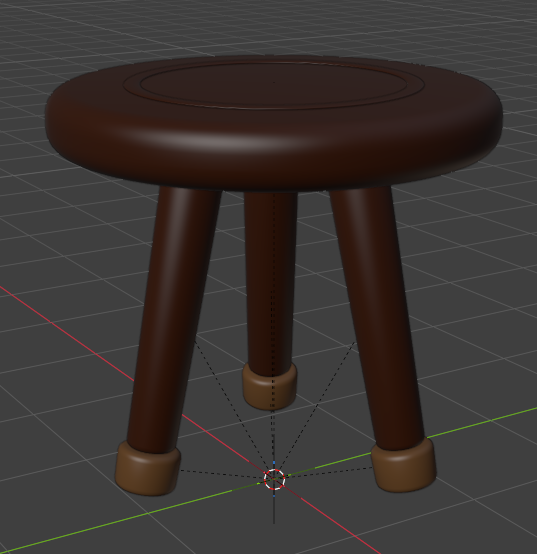
The question is, can OpenCode do something similar for us, create 3D models in Blender? And using the free AI models so we don't have to pay for a subscription? Turns out it can!
Download and Install OpenCode
To download OpenCode, go to this page on their site:
There are several ways you can get OpenCode onto your computer: as a Desktop app, in a Terminal window, even an extension to programs like VS Code, Cursor, VSCodium. We'll use the desktop app on a Windows machine. (You can get versions for Linux and macOS.)
Download the app above and double click to install it on Windows. Once installed, launch OpenCode. There's not much to see, once it's up and running as it's a nice, clean interface:
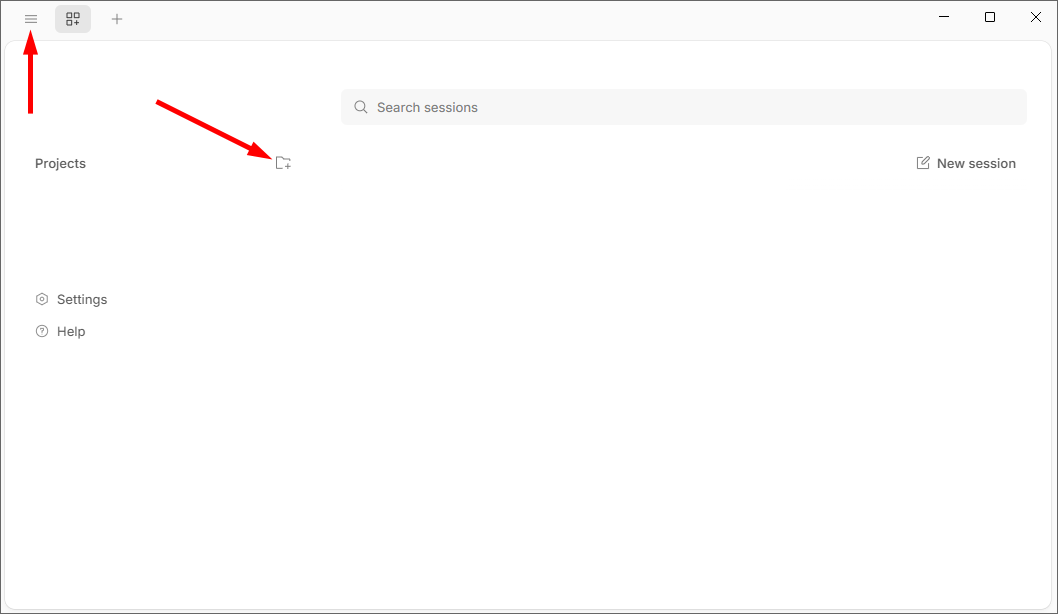
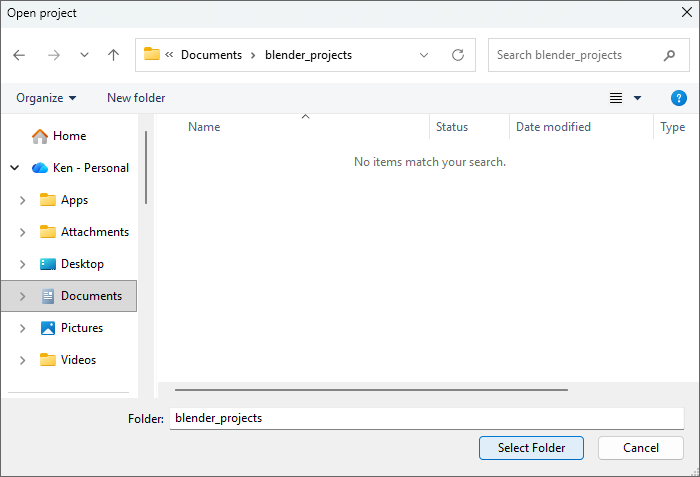
If you click the folder + icon to create a new project, you'll get an open file dialog box where you can select a project folder. In the image below, we've downloaded the stool image above and saved it to a folder called blender_projects. You can add as many files as you want to a project folder.
So as not to confuse the AI, try to add only files that are relevant to what you want it to help you with.
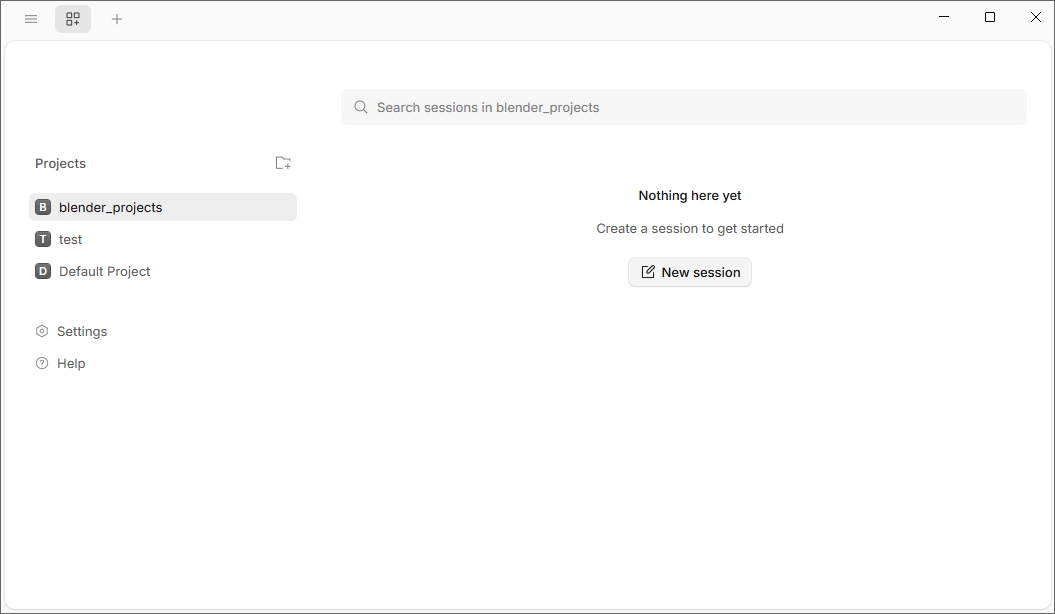
You'll see your new project appear on the left:
You can, if you want, just create a new session without creating a project. In Windows, a shortcut is CTRL + SHIFT + S. Or select the menu top left: File > New Session:
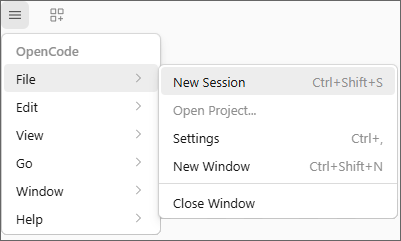
When you start a new session, you'll see a standard prompt text area:
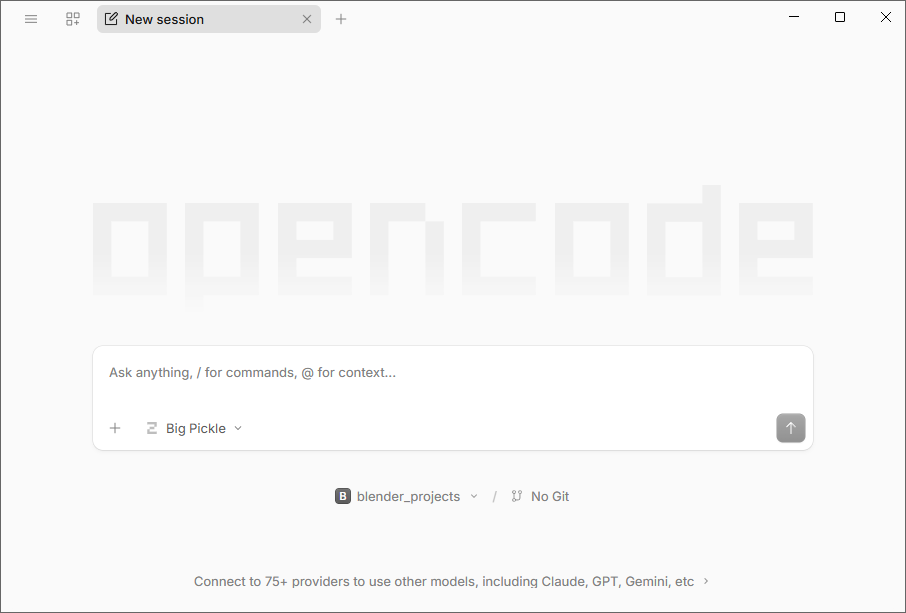
The plus symbol bottom left is for adding things like images, files, commands. The next icon is where you can select your AI model. The default is Big Pickle, at the time of writing. Big Pickle is a free, AI model provided by OpenCode as part of its Zen model set. Described as a stealth model designed for general coding, it's particularly useful for everyday development tasks such as implementing functions, editing files, and performing code reviews. It's a fast and efficient model for most standard programming tasks.
Click to see more models:
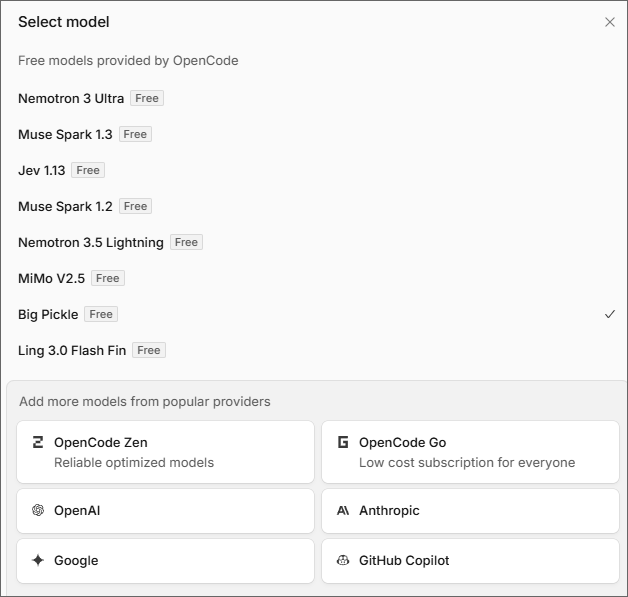
As you can see, there are quite a few free models on the list. The ones that are image capable are MiMo V2.5 and Muse Spark 1.2 and 1.3. We'll use these shortly. But notice you can hook up OpenCode to AI models from popular providers. These are usually the paid for models that you sign up for. To use them in OpenCode, you typically have to provide your authentication and login details.
But stick with the Big Pickle model. We'll use it to create a 3D model in Blender. Although we won't be able to attach an image to the Big Pickle model, we can just type a text prompt.
MCP Servers in OpenCode
Before you can create a 3D model in Blender, you need to set up Blender and enable the MCP server. Otherwise, Big Pickle, and any other AI model, won't be able to see it.
We set up Blender in a previous lesson, and so won't do it again here. Visit this page on our site to set Blender up, if you haven't already:
OpenCode has a page on its site here that explains MCP Servers and how they are used in OpenCode:
https://opencode.ai//docs/mcp-servers
For us, all we need to do in Windows is to add some code to the already created opencode.jsonc file. In a standard Windows installation, the file lives here, in this folder:
C:\Users\YOUR_USER_NAME\.config\opencode
Replace YOUR_USER_NAME with whatever your own username is on your computer:
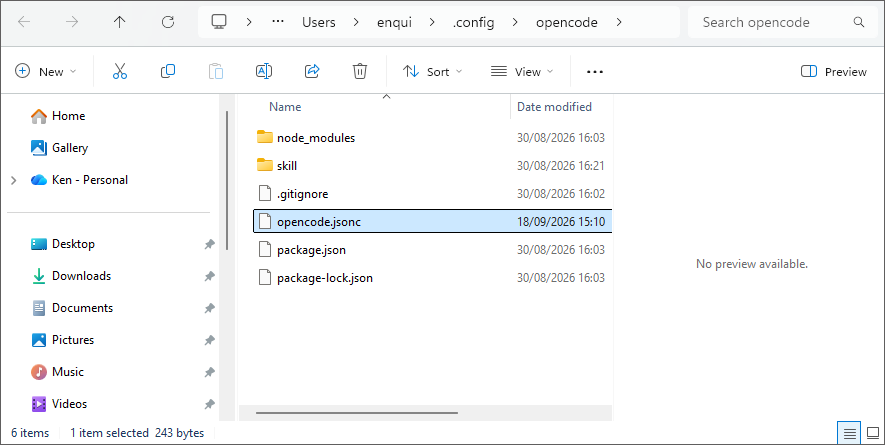
Right-click opencode.jsonc, which is the file you need. From the menu, you can select to Edit it in Notepad. (If there is no Notepad option, just double click the file and you'll get a choice of which app to use when opening files of this type.)
When you open the file, it will just have a single line between two curly brackets:
{
"$schema": "https://opencode.ai/config.json"
}
Replace it with this:
{
"$schema": "https://opencode.ai/config.json",
"mcp": {
"servers": {
"blender": {
"type": "local",
"command": ["uv", "run", "blender-mcp"],
"cwd": "C:\\path\\to\\blender_mcp\\mcp"
}
}
}
}
You need to change the cwd line. When we installed the blender mcp files, they were at this location:
C:\\Users\\enqui\\Documents\\blender_mcp
In which case, the final line would be:
"cwd": "C:\\Users\\enqui\\Documents\\blender_mcp\\mcp"
Save the file and that should be the MCP config set up.
If you have problems above, you can ask Big Pickle for help:
PROMPT
Can you tell me where my blender_mcp folder is?
PROMPT
Can you tell me where the OpenCode file opencode.jsonc lives? What is
the path?
PROMPT
I was given some code for the MCP config file. Can you adapt it for
my system:
{
"$schema": "https://opencode.ai/config.json",
"mcp": {
"servers": {
"blender": {
"type": "local",
"command": ["uv", "run", "blender-mcp"],
"cwd": "C:\\path\\to\\blender_mcp\\mcp"
}
}
}
}
With the config file setup, you can ask Big Pickle if it can see Blender:
I have enabled the Blender MCP server and added the OpenCode config lines. Can you see the open Blender session I have?
(This assumes you have opened Blender. If not, fire up Blender and delete the default cube in the scene.)
Big Pickle couldn't see our version of Blender at first. It gave us this rather complex message:
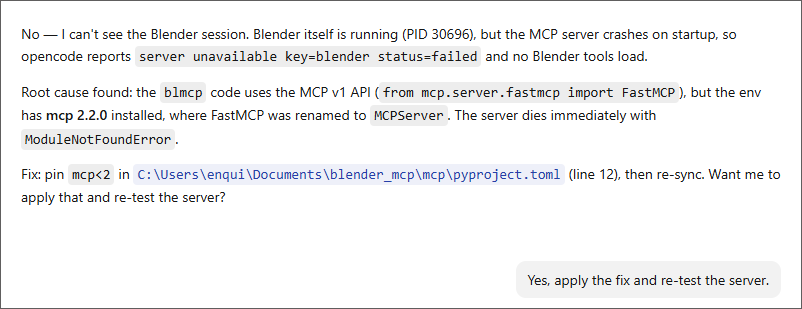
We asked it to apply the fix. It did so and advised us to restart OpenCode. We did this and were all set - OpenCode could finally see and communicate with Blender via its MCP server.
Now for the test. Let's create a stool!
OpenCode and Blender - the Results
We first attached the stool image by clicking the plus icon in the bottom left of the prompt box. Here is the stool again, if you don't have it:
Then added the prompt:
I have attached an image of a simple three-legged stool. Can you create this for me in Blender?
Big Pickle came back:
"I can't view the attached image - this model doesn't support image input. But "simple three-legged stool" is descriptive enough that I can build one. A couple quick choices ... "
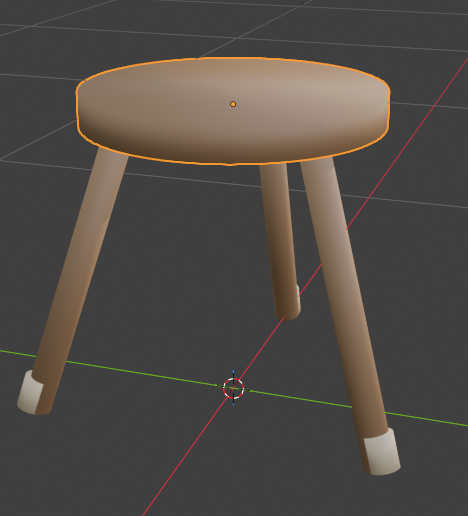
It then asked us some questions about the type of stool we would like. Eventually, Big Pickle created this:
We asked Big Pickle to refine the results:
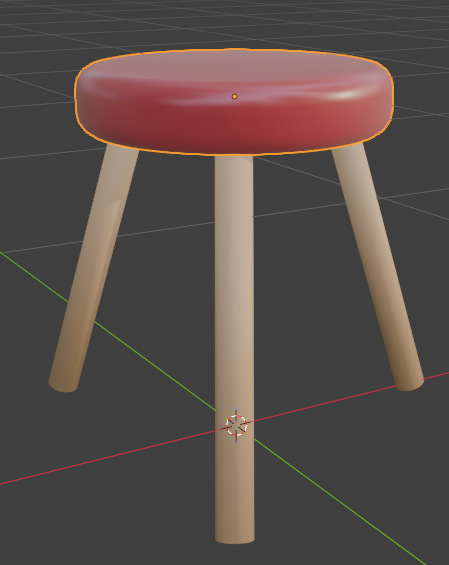
"Can you change the seat? Make it a padded seat, with dark red leather upholstery."
In the end, it produced a decent stool:
MiMo V2.5
Now switch models. Select MiMo V2.5. This is an image capable model. Enter the prompt again:
I have attached an image of a simple three-legged stool. Can you create this for me in the open Blender session?
At first, MiMo couldn't create anything because it was stuck in READ-ONLY mode. Fortunately, it came with its own solution: Would you like me to override the READ-ONLY restriction and create this stool?
We said YES, of course.
Now out of READ-ONLY mode, it created the following stool (it was a bit slow to do so, though):
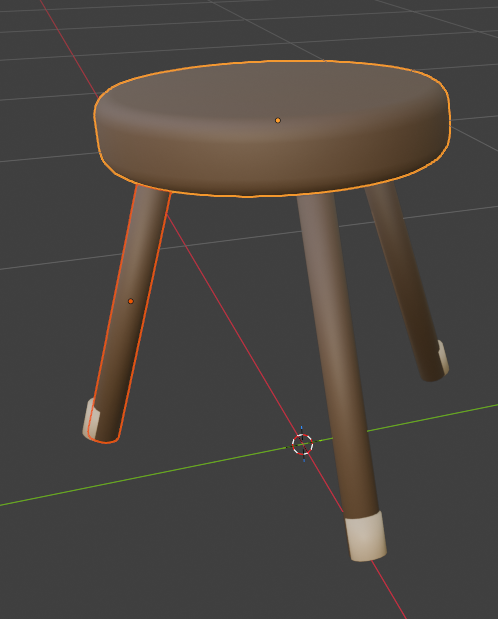
A decent attempt, but not quite good enough, to be honest. Especially the stoppers at the bottom. They don't go all around the legs. We needed a few more back and forth prompts before it could pass muster as a stool
Muse Spark 1.3
Muse was quicker than MiMo. And it had a more upbeat, friendly tone. We gave it the same prompt as MiMo and this was its first attempt:
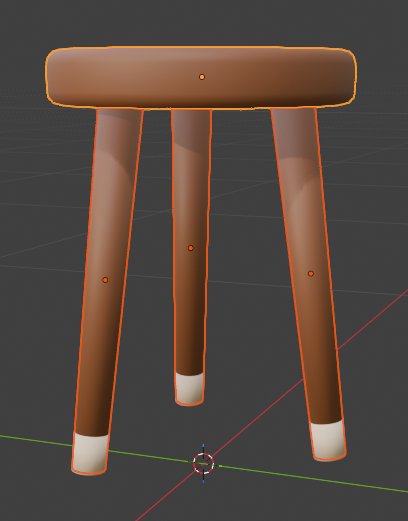
Its legs were a bit too narrow. So we asked it to correct them:
"Can we splay the legs a bit more, spread them out? They are too narrow and clustered."
It replied, "Got it - too tucked under. I'll spread the feet wider now."
Here was the result:
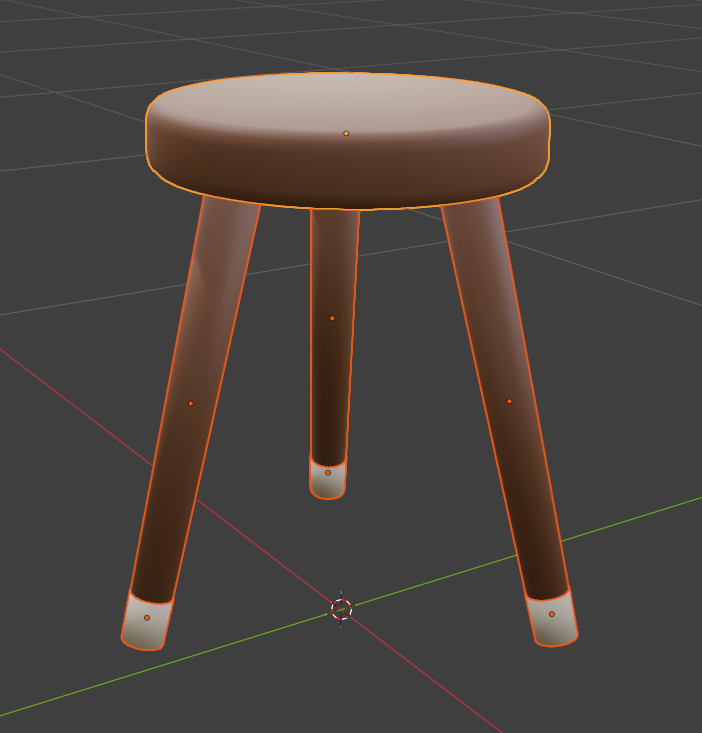
A very good stool, all told. And pretty decent for a free AI model that costs us nothing in monthly subscriptions!
To sum up, give OpenCode a try, see what it can do with the free models. It might surprise you.