Get Started with Vibe Coding
For these Vibe Coding tutorials, we are going to use a piece of software from OpenAI called Codex. Codex is an AI coding assistant that can help you create, edit, explain, and test code inside a project folder on your computer.
You do not have to use Codex to follow the general ideas in these tutorials. Other agentic AI coding tools are available, including Anthropic's Claude Code and Google's Gemini Code Assist. However, we will use Codex here because it is straightforward to install, especially for Windows users, and it is simple to get running once you have signed in.
Download and Install Codex
On Windows, Codex is included in the ChatGPT desktop app. Download the app from the official Windows page:
Download the ChatGPT desktop app for Windows
Once the download has finished, open the installer and follow the prompts to install the software. Open the ChatGPT desktop app and select Codex when you are ready to work through these tutorials.
On Windows, this usually means double-clicking the downloaded installer file and allowing it to complete the setup process. If Windows asks whether you want to allow the app to make changes to your device, check that the app is from OpenAI before continuing.
Create or Use a ChatGPT Account
Before you start using Codex, you will need a ChatGPT account. In some setups, advanced users may use an OpenAI API key instead, but for these tutorials the normal ChatGPT sign-in flow is the easiest route.
You can sign up or log in here:
https://chatgpt.com/auth/login
If you already have a ChatGPT account, use the same email address and password, or the same single sign-on option, when Codex asks you to sign in.
Open Codex for the First Time
Once the app has been installed, launch it from your Start menu, desktop shortcut, or applications list. The first time you open it, select Continue to sign in. Your browser will open so you can complete the ChatGPT sign-in flow before returning to the desktop app.
After signing in, you should see a screen similar to this:
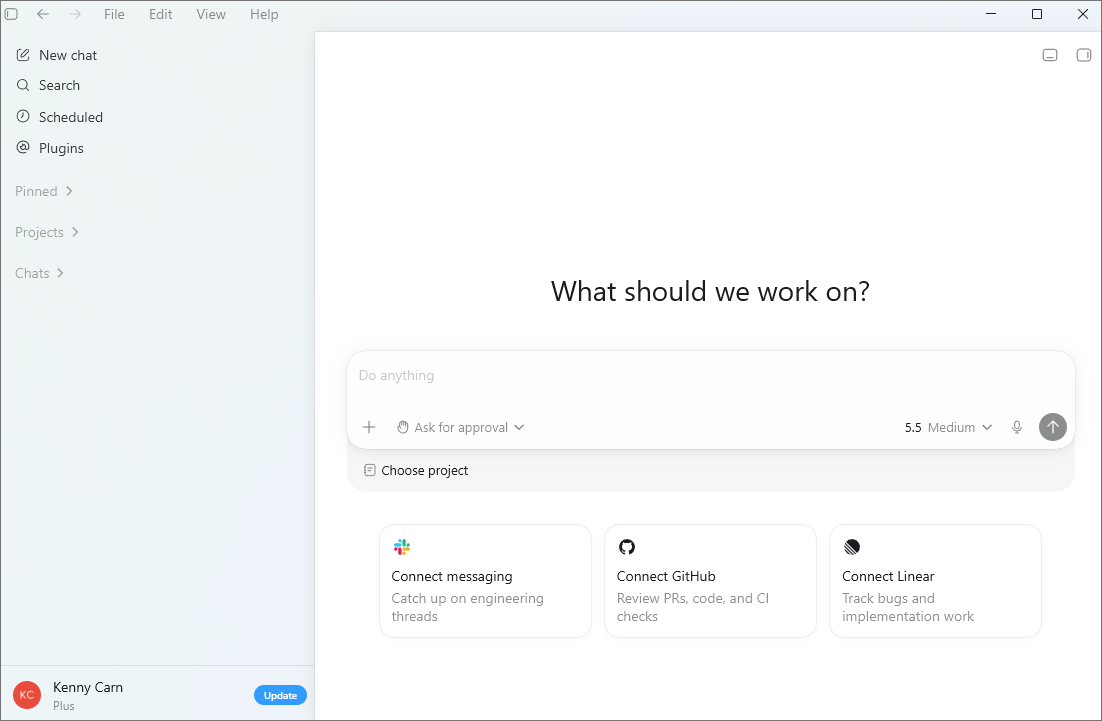
The exact layout may change slightly as Codex is updated, but the main idea should be the same. You will normally see a central prompt box asking what you want to work on, a project picker, model and approval controls, and a sidebar with areas such as New chat, Search, Scheduled, Plugins, Projects, and Chats.
If you see the opening screen shown in the image, you are in the right place. From here, you can choose a project folder and start asking Codex to help you build, edit, debug, or explain code.
A Quick Note Before You Begin
Codex works best when you give it a clear project folder and a clear instruction. For example, instead of only saying "make a website," you might say:
"Create a simple one-page website in this folder with a heading, an image area, and three sections explaining my project."
As we move through these tutorials, you will learn how to give Codex better instructions, how to review the changes it makes, and how to keep control of your project while using AI to speed up the work.
A Quick Test
Let's do a quick test project to see if everything is working. We'll create a simple "Hello World" web page called index.html.
On the opening screen, the large text area in the middle of the window is where you type your instructions to Codex. Codex calls this area the composer or prompt box. This is where you explain what you want Codex to do.
Before you send your first prompt, choose where the new file should be saved on your computer. Codex works inside a project folder, which is just a normal folder on your computer that Codex is allowed to read and edit. For this first test, you might create a folder somewhere easy to find, such as:
C:\Users\Your_User_Name\Documents\Vibe Coding\Hello World
Replace "Your_User_Name" with your own Windows username, or choose another location that makes sense to you. The important thing is that you know where the folder is, because Codex will save hello-world.html inside that project folder.
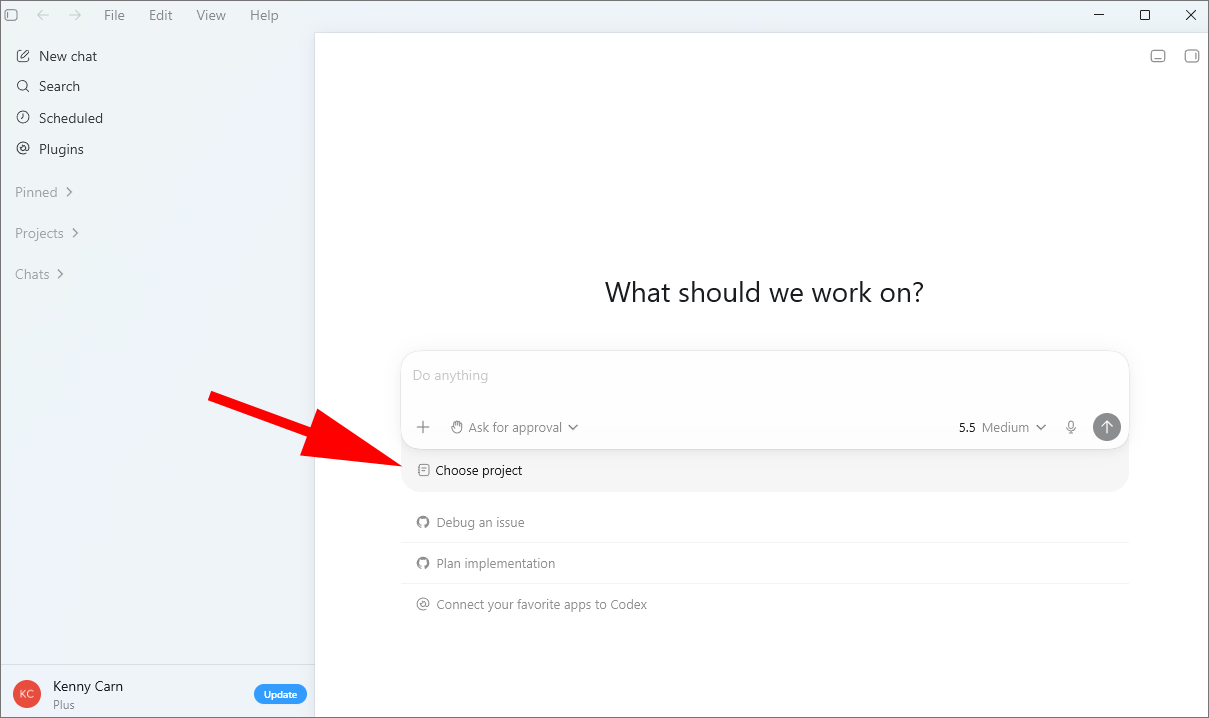
To create a project folder in Codex, click Choose project or Add new project, depending on what appears in your version of the app:
From the menu that appears, select either 'Start from scratch' or 'Use an existing folder':
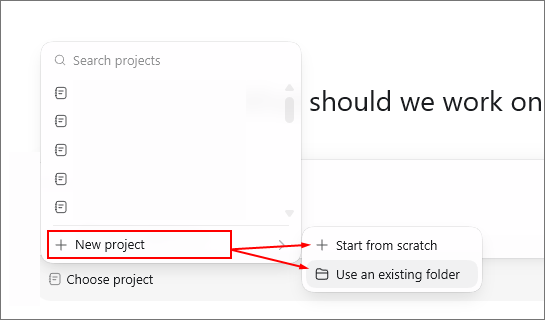
Selecting the 'Start from scratch' option will cause a popup box to appear where you can choose a folder name. Use the other option if you already have a folder created for your project.
Once you have selected a folder, Codex will treat that folder as the project for this thread. For this tutorial, a new empty folder is perfect.
Now click inside the prompt box and enter the following prompt:
Create a simple one-page web page with a H1 heading that says 'Hello Vibe Coding World'. Center the heading on the page. The background color for the page should be [INSERT YOUR COLOR CHOICE HERE]. The color for the heading should be [INSERT YOUR COLOR CHOICE HERE].
Before you send it, replace the two bracketed sections with your own color choices. For example, you could use "light blue" for the background and "dark navy" for the heading, or you could use CSS color names such as "lavender", "black", "yellow", or "rebeccapurple".
When you are ready, click the Send arrow in the bottom-right corner of the prompt box. Codex will read your instruction, decide what file needs to be created, and may show you the steps it plans to take. It should then create a new file called hello-world.html inside your selected project folder. Depending on your approval settings, Codex may ask for permission before it writes the file. If the action looks correct, approve it and let Codex continue.
When Codex has finished, you should be able to review what it changed. You may see the new file listed in the thread, in the review area, or in the project file list. The file itself will also exist in the project folder you chose on your computer.
When Codex is working it will show progress messages while it thinks, writes the file, and checks the result. You'll see output like this:
I'll make this as a tiny static page in the workspace, using the frontend app builder guidance since this is a new web page.
Thinking ...
The request is very small and fully specified, so I'm treating the design as the spec directly: light pink full-page canvas, centered dark crimson H1, no extra UI or copy.
Running ...
The page is in place. I'm doing a quick file check now to make sure the final HTML has exactly the requested text and styling.
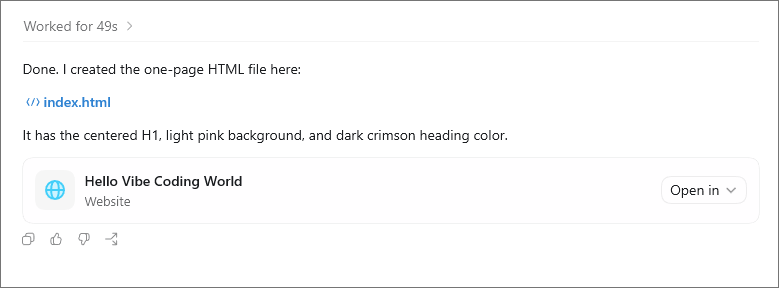
When Codex is finished, you'll see output like this:
Previewing the Web Page
To see what your web page looks like, Codex includes an in-app browser. This gives you and Codex a shared place to preview simple web pages and local development sites without leaving the Codex window. For this test, Codex may be able to open the hello-world.html file directly in the in-app browser, or it may provide a local preview link that you can click.
The in-app browser is useful because Codex can look at the rendered page with you. If something is wrong, such as the heading not being centered or the colors not looking right, you can tell Codex what to change and it can edit the file again.
You can also open the web page outside Codex in your normal browser. To do that, open File Explorer, go to the project folder you selected earlier, and double-click hello-world.html. Windows should open the file in your default web browser, such as Microsoft Edge, Chrome, or Firefox.
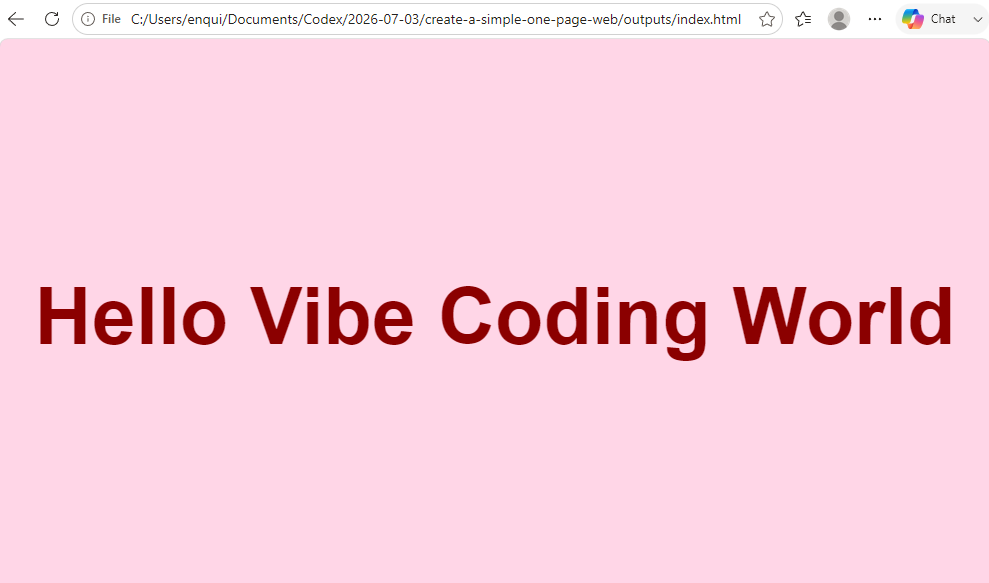
If the page opens and you see the heading "Hello Vibe Coding World" centered on the page with your chosen colors, your Codex setup is working.
If all went well, you'll see a page like this, but in your chosen colors:
Codex Installation Troubleshooting
Do I need an OpenAI API key?
No. For these tutorials, sign in with your ChatGPT account. An API key is an alternative sign-in method intended for usage-based API access, but it is not required for this course.
Why did Codex open my web browser when I signed in?
This is expected. The desktop app uses a browser window to complete the ChatGPT sign-in process. Finish signing in there, then return to the app.
Why are some Git features unavailable?
Some review and project features need Git to be installed on Windows. You can install it from PowerShell with winget install Git.Git, then restart the app.
What should I do if PowerShell says scripts are disabled?
Windows may block scripts because of its PowerShell execution policy. Do not change that policy without understanding the security implications. Read Microsoft's execution policy guidance, or ask your computer administrator for help.
Congratulations - You have just used Codex to vibe code a web page! Take a moment to appreciate what just happened. You now have a HTML web page, even though you might not know how to write a single line of html code. And that's just dipping a toenail into the water, never mind the whole toe. If you wanted it to, Codex could create a whole website for you, including designing the look and feel of the site, creating all the images, and doing the SEO for you. Give it an FTP server and the login details, and it can even upload the files for you.
But we'll leave it there for the introduction. In the next tutorial, you'll learn how to Vibe Code your very first Match Three game.