Home and Learn: Microsoft Word Course
Print Preview in Word
To see what your headers and footers look like, you can preview them.
Print Preview in Word 2007
Click the round Office button in the top left of Word, in Office 2007. Then
select Print. From the Print options, select Print Preview:

When you click on Print Preview you're left with just a single tab. This one:

To get back to the normal Word ribbons, click the Close Print Preview button on the right.
But have a look at your headers and footers. Use the Zoom control on the tab to zoom in and out.
Print Preview in Word 2010 to Word 2016 and greater
In newer versions of Word, there is no Print Preview tab. Instead, click on the File tab then on Print from the left menu:
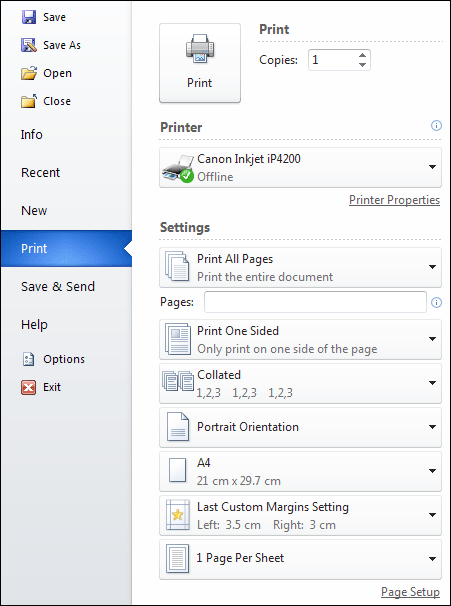
You should see some settings for your installed printer appear. To preview what you're about to print, have a look just to the right of the printer settings area. You should see your document. Use the zoom tool at the bottom, or the next page icons. To get back to your document in Word 2010, click the Exit item at the bottom of the left menu. To get back to your document in Word 2013 to 2016 and later, click the white arrow in the white circle, top left of the page.
OK, we're done with the story now. So save your work and we'll move on to creating a booklet in Microsoft Word.