Home and Learn: C# NET Course
Getting Started With C# .Net
If you have Visual Studio Community 2019 or above, click here to jump to your section for creating a new project (or just scroll down a bit):
Create a New Project in Visual Studio Community 2019
2015 to 2017 Users
When you first start Visual Studio Community 2015 and 2017, you'll
see a screen like this one:

This lets you select the colour scheme for the software. We've gone for Light, in the screenshot above. Click the Start Visual Studio button at the bottom and you'll see this screen appear:
C# .NET 2015 ( new popup window - 30K )
Or this, for the 2017 edition:
C# .NET 2017 ( new popup window - 50K )
There's a lot happening on the start page. But basically, this is where you can start a new project, or open an existing one. At the moment, the area bottom-left labelled Recent is blank.
When you create a project, the name you give it will be displayed here,
as a hyperlink. Clicking the link will open the project.
On the left-hand side of the start screen, there are two links: "New Project" and "Open Project". To get started, click the New Project link. For Community 20017 users, you won't see the links. Instead, click File > New > Project.
Creating a new project will bring up a dialogue box:

Click on Templates from the list on the left. Under Templates, click on Visual C#. You'll then see Console Application appear in the middle. (Community 2015 users will see more items in the middle; 2017 users will see a Console App item.)
The New Project dialogue box is where you select the type of project you want to create. If you have a version of Visual Studio Express prior to Community 2017, your options are limited. For the rest of this course, we'll be creating Windows Applications. For now, select Console Application or Console App. Then click OK.
When you click OK, a new Console Application project will be created for you. Some code should be displayed. You can now skip the next section and pick up with the heading All Users.
Visual Studio Community 2019
Once everything is downloaded and installed, you're ready to start a new project. You should see this:

Any projects you create will appear on the left, under Open recent, and you can simply click on your file to open it. Click on Create a new project, the fourth box on the right in the image above.
On the Create a new project dialogue box. You'll see this screen:

The one selected, Console App, is the one you want. But if it's not selected, click the dropdown box at the top, for Languages. Then choose the C# option:

There is another template for Console Apps. The second one is specific to Windows. You can use that one, if you prefer. The screenshot below shows it selected:

Click Next, though, to go to a new screen:

You can leave it on the default project name of ConsoleApp1.
You can choose a location to save your projects. We recommend creating a folder called Visual Studio 2019 to save all your work. Inside of the Visual Studio 2019 folder, create one called Projects. This will model the save location of previous versions of the software. Click the grey button to the right of the location box to do this.
The solution name takes the same name as the project name, but it can
be different, if you prefer. But click the Create button to create your
new project.
All Users
You should now be looking at a screen that looks something like this
(screenshot from the 2019 version of the software:

What we're going to do first is to create a very simple program, so that you can see what makes up a C# .NET project. By the end of this chapter, you'll have learnt the following:
- How to create new projects
- What the Solution Explorer is
- The various files that make up of a C# .NET project
- How to save your work
- How to run programs
- The importance of the Main statement
The simple program we'll create is called a Console Application. We won't be doing much else with this type of application, as this is a course about Windows Applications. Off we go then!
A Simple C# Console Application
A Console Application is one that looks like a DOS window. If you don't know
what these are, click your Start menu in the bottom left of your screen. In
Vista and Windows 7, type cmd in the search box at the bottom of the start menu.
In Windows 8 and 10, the search box is on the Start Screen page. You'll then
see the search results appear:

Click Command Prompt to see the console appear.
Click OK and you'll see a black or grey screen, like this one:

This is the type of window you'll see for our Console Application. When you create your Windows forms, there's a whole lot of code to get used to. But Console Applications start off fairly simple, and you can see which part of the programme is the most important.
As well as the code, have a look on the right hand side and you'll see the Solution Explorer. This is where all the files for your project are. (If you can't see the Solution Explorer, click View from the C# menu bar at the top. From the View menu, click Solution Explorer.)The code itself will look very complicated, if you're new to programming. We'll get to it shortly. For now, right click the Program.cs tab at the top, and click Close from the menu that appears:

Or just click the X in the top right corner:

Now double click the Program.cs file in the Solution Explorer:
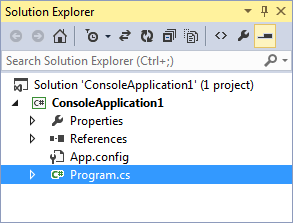
When you double click Program.cs, you should see the code reappear. So this code is the programme that will run when anyone starts your application.
Now click the arrow symbol next to Properties in the Solution Explorer above. You'll see the following:
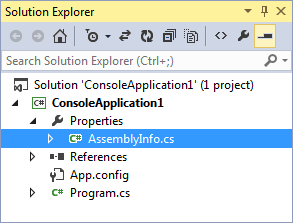
The file called AssemblyInfo.cs contains information about your programme. Double click this file to open it up and see the code. Here's just some of it:

The reddish colour text is something you can change. You can add a Title, Description, Copyright, Trademark, etc.
But right click the AssemblyInfo.cs tab at the top, and click Close from the menu. Now, in the Solution Explorer, click the plus symbol next to References:
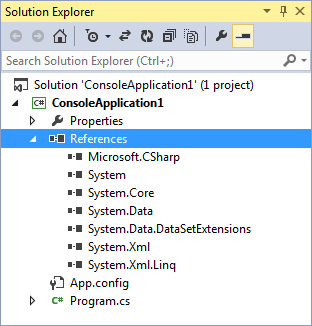
These are references to code built-in to C# (you may see more entries in the Community 2015 and 2017 editions). Much later, you'll see how to add your own files to this section.
In Visual Studio Community 2019, you may also see lines that say references. These will be grey. It's part of a new addition called CodeLens. If you don't want to see these lines, click Tools on the menu bar at the top. From the Tools menu, click on Options at the bottom. You'll see a dialogue box appear. Expand the Text Editor item, then All Languages. Select CodeLens. Deselect the Enable CodeLens option:

Before we add some code, let's save the project. We'll do that in the next part below.
saving your work in c# .net -->
back to the c# net contents page