Home and Learn: Games Programming Course
Unity User Interface Elements
At the moment, we're only displaying the player's health in the console via a Debug line. Which is no good for a game. What we'll do now is to display the health on screen using user interface elements.
Unity Text
In the Hierarchy on the left, expand your MainCamera item. This is where you have your player's gun and the gun sight. We can add a User Interface (UI) element here, as well. So, right-click on MainCamera. From the menu, select UI > Text - Text Mesh Pro:
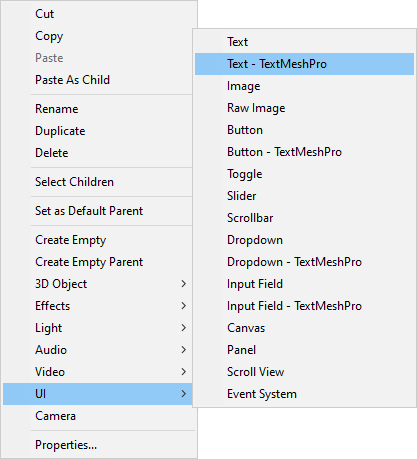
(If this is this first time you're adding Text Mesh text to a project, you'll see a dialog box appear asking you to install Text Mesh Pro. Go ahead and do this. But Text Mesh Pro just gives you more formatting options than the other Text on the menu above.)
Rename your new TextMesh Pro item. Call it Text-Health:
health-text-hierarchy.png
In the Inspector on the right, delete New Text from the Text Input box. In its place, type Health 100:
IMG
In scene view, it will look like something like this, once you zoom out:
health-text-scene.png
You can drag the green arrow up, and the red arrow to the left or right to reposition your text. Or just type some values for Pos X and Pos Y in the Inspector on the right. The top half of Inspector looks like this for us, as we have positioned the text in the top left:
health-text-inspector.png
Switch to the game tab to see this:
health-text-game.png
If you scroll down a bit, you'll see lots more settings you can apply to your text:

The default font size is 36. You can make this bigger or smaller, if you want. If you do, you may need to change the Width and Height in the Rect Transform area. The default font color is white. You can change this to anything you like. The default font is Liberation Sans. Take a look at the other font options:

You could import a font as an Asset, if you wanted to. If you do, the font will show up on the list. Try the fonts out, though, and see what they look like.
You can also choose a different Text Style. Click the dropdown to see a list of inbuilt styles:

Again, try them out to see what they look like. We'll keep ours on Normal.
There are lots of other options you can explore for the font. Take a look at the Font Style icons, for example. You can have Bold, Italic, Underline, Strikethrough, Lowercase, Uppercase, and Small Caps.
Health Code
Now go back to your PlayerHealth script. You can delete all the code and copy and paste the following. Or just add the highlighted lines. Here's the new code:
using UnityEngine;
public class PlayerHealth : MonoBehaviour
{
public int maxHealth = 100;
private int currentHealth;
//==================================
public TMPro.TMP_Text healthText;
//==================================
void Start()
{
currentHealth = maxHealth;
//===================
UpdateHealthUI();
//===================
}
public void TakeDamage(int damage)
{
currentHealth -= damage;
Debug.Log("Player Health: " + currentHealth);
//===================
UpdateHealthUI();
//===================
if (currentHealth <= 0)
{
Die();
}
else {
Debug.Log("HEALTH= " + currentHealth);
}
}
//==============================================
private void UpdateHealthUI()
{
if (healthText != null)
{
healthText.text = "Health: " + currentHealth;
}
}
//==============================================
private void Die()
{
//=============================
healthText.text = "DEAD! ";
//=============================
Debug.Log("Player has died!");
// Add stuff here: respawn player, Game Over Screen, etc
}
}
And here's what your coding window will look like:
To set TextMesh Pro text, add this variable to the top of your code with the other two:
public TMPro.TMP_Text uiPlayerHealth;
Now let's add a little method to update the text. We can then call this method from different places. Add this method before the final curly bracket of the class:
private void updateHealthText(int score)
{
uiPlayerHealth.text = score.ToString();
}
We've called this method updateHealthText. In between round brackets, we're passing over an integer value that we've called score.
The code for the method is just a single line. This one:
uiPlayerHealth.text = score.ToString();
You only need to add text after uiPlayerHealth. This gets you access to the text part of the Text Mesh Pro component. After an equal sign, we assign our score variable. Because it's an integer, we need to convert it To a String.
We need to call this method from three places. Add this line to the end of your Update method, just before the final curly bracket but after the if statement:
updateHealthText(playerHealth);
In the PlayerTakeDamage method, we need to call it in two places. Add the updateHealthText method call just after the first line. And add updateHealthText again after the line of the if statement.
Your code should look like this: (The new lines are highlighted.)

Save your code and go back to Unity. Select your First person camera item in the Hierarchy. Drag and drop Text-Score onto the empty slot, UI Player Health:
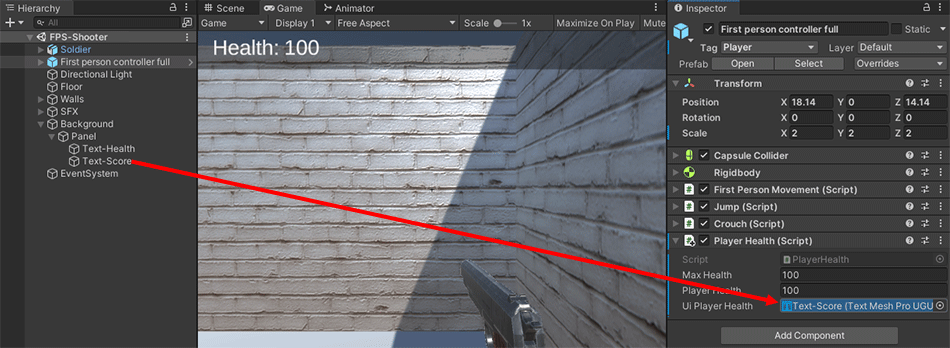
Play your game. When you get shot, you should see the health decrease on screen. Your game should look like the one in the short video below. (15 seconds)
What we can do now is record the number of lives the player has left. When the number of lives gets to zero, we can declare the player dead and the game over. We'll do that in thenext lesson below.