Home and Learn: C# NET Course
Creating A Database Connection Class
In order to connect to our database, we can create a class to handle all the connection issues.
From the Project menu at the top of Visual Studio, select Add Class:
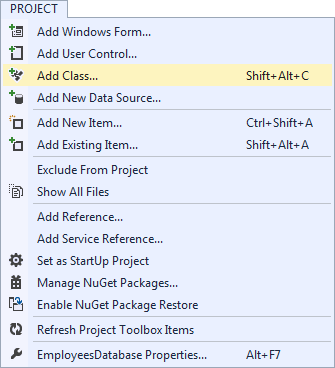
You'll see the following dialogue box appear:
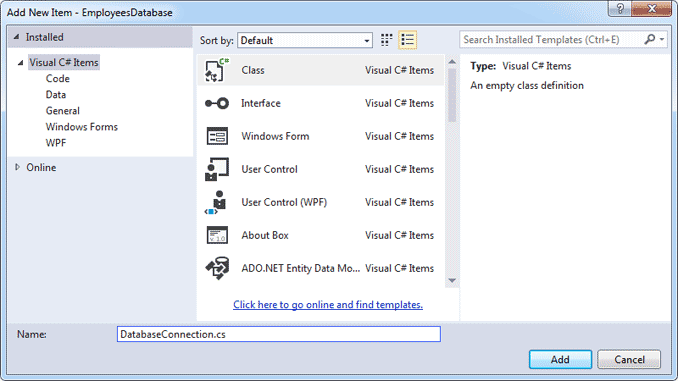
Make sure the Class item is selected. In the Name box at the bottom, type DatabaseConnection.cs. Then click the Add button at the bottom.
When you click Add, your new class will appear in the Solution Explorer on the right:
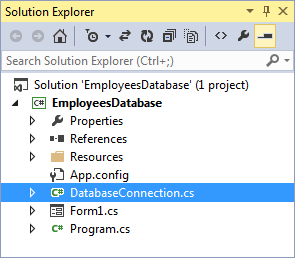
The code stub for your class will be open in the main window (if it's not, simply double click DatabaseConnection in the Solution Explorer):

(2010 users won't have the Threading.Tasks using statement.)
The class we're going to create, as its name suggests, will help us to connect to a database. We'll add fields, properties and methods to the class.
The first thing to do is to set up two field variables:
private string sql_string;
private string strCon;
Add the two lines above to your class code and it will look like this

The sql_string field variable will hold a SQL string like "SELECT * FROM table". We'll get this from the Settings we set up earlier. The strCon field variable will hold a location of the database. Again, we'll get this from the Settings we added.
The next code to add is a write-only property (meaning it has no get part):
public string Sql
{
set { sql_string = value;
}
We've called this property Sql. It's going to be a string. It's public because we want to access this property from outside of this class. The value (the SQL itself) will be assigned to the sql_string field variable. We're saying, set the variable called sql_string to whatever is held in the Sql variable on line one.
The next bit of code sets something into the strCon field variable. This something is our connection string, the one we set up on the Settings page. Again, this is a write-only property.
public string connection_string
{
set { strCon = value; }
}
When you've added the two properties above, your code should look like this:

The next thing we need is something called a DataSet. Think of a DataSet as a grid that holds the data from our table. Each row in the DataSet grid will hold a row from our database table. The table is then closed, and the rows and columns in the DataSet is manipulated with code. In other words, you load table data into a DataSet, rather than manipulate the table in the database.
Add this code to you class:
public System.Data.DataSet GetConnection
{
get { return MyDataSet( ); }
}
We've called this property GetConnection. This is a read-only property. For the get part we're calling a method with the name MyDataSet. The method connects to the database and fills a Dataset. It's this method that does all the work. Here's the code stub to add:
private System.Data.DataSet MyDataSet( )
{
}
The method is called MyDataSet. Instead of it being a string or an integer it's of this type:
System.Data.DataSet
So the type is DataSet. The inbuilt DataSet code lives in System.Data.
The first line to add to the new method is this rather long line:
System.Data.SqlClient.SqlConnection con = new System.Data.SqlClient.SqlConnection( strCon );
The variable we've created is called con. This variable is of type SqlClient.SqlConnection. Again, the SqlClient.SqlConnection code lives in System.Data. We're creating a new object of this type. In between the round brackets of SqlConnection we have our strCon variable. So SqlConnection will use our connection string in strCon to connect to the database.
The next line to add is this:
con.Open( );
Here, we open a connection to the database.
However, although we have opened a connection to the database, we haven't yet opened the table in the database. To do that, we need something called a DataAdapter. A DataAdapter is used to open up a table in a database. We'll need to reference this DataAdapter later in our project, so we'll need to add a new line to the top of the Class. Add the following line just below the sql_string and strCon variables:
private string sql_string;
private string strCon;
System.Data.SqlClient.SqlDataAdapter da_1;
The variable we've set up is called da_1. It's of type SqlClient.SqlDataAdapter.
Go back to your MyDataSet method and add this line:
da_1 = new System.Data.SqlClient.SqlDataAdapter(sql_string, con);
In between round brackets we have our sql_string variable. This is used to tell C# which records we want from the table. (We're going to be passing it that Settings string we added earlier.) After a comma, you need a connection object. This tells C# which database the table is in.
The next line is this:
System.Data.DataSet dat_set = new System.Data.DataSet( );
This sets up a DataSet object. The variable we've created is called dat_set. The whole method is going to be returning this DataSet, which will hold all the records from the table.
The final three lines are these:
da_1.Fill(dat_set, "Table_Data_1");
con.Close( );
return dat_set;
The first of those lines uses the Fill method of our DataAdapter object. This is used to fill a DataSet. In between the round brackets of Fill you need the name of a DataSet to fill. After a comma, you can add a name for the Fill, if you want. We've added one called Table_Data_1.
The final two lines close the connection object, and return the DataSet.
The whole of the code for your class should look like this:
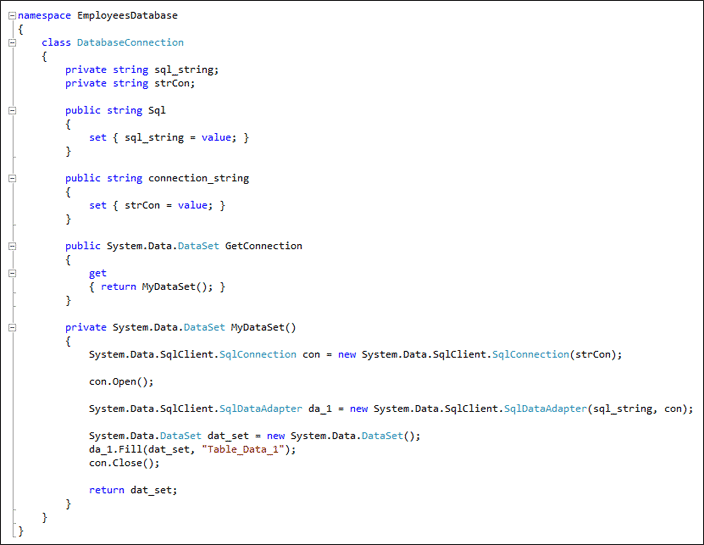
Save your work and we'll put this new class to use. We'll do that in the next section below.
<-- database project | connect to the database using the class -->
back to the c# net contents page